



Account maps, Microsoft Teams calls, custom Library views, more workspace design controls, and lots more.
While the spotlight was on bigger launches like Courses, Playbooks, AI suggestions, and our Chrome Extension, we were busy shipping lots of little improvements across Dock that add up to a noticeably smoother experience.
Keep reading for all the little Dock updates you'll love.
Account maps
1. Visualize stakeholder engagement with account maps
Account maps give you a visual overview of every contact across an account—organized by level, department, and role. They're accessible from the Contacts tab in a workspace's Internal view.
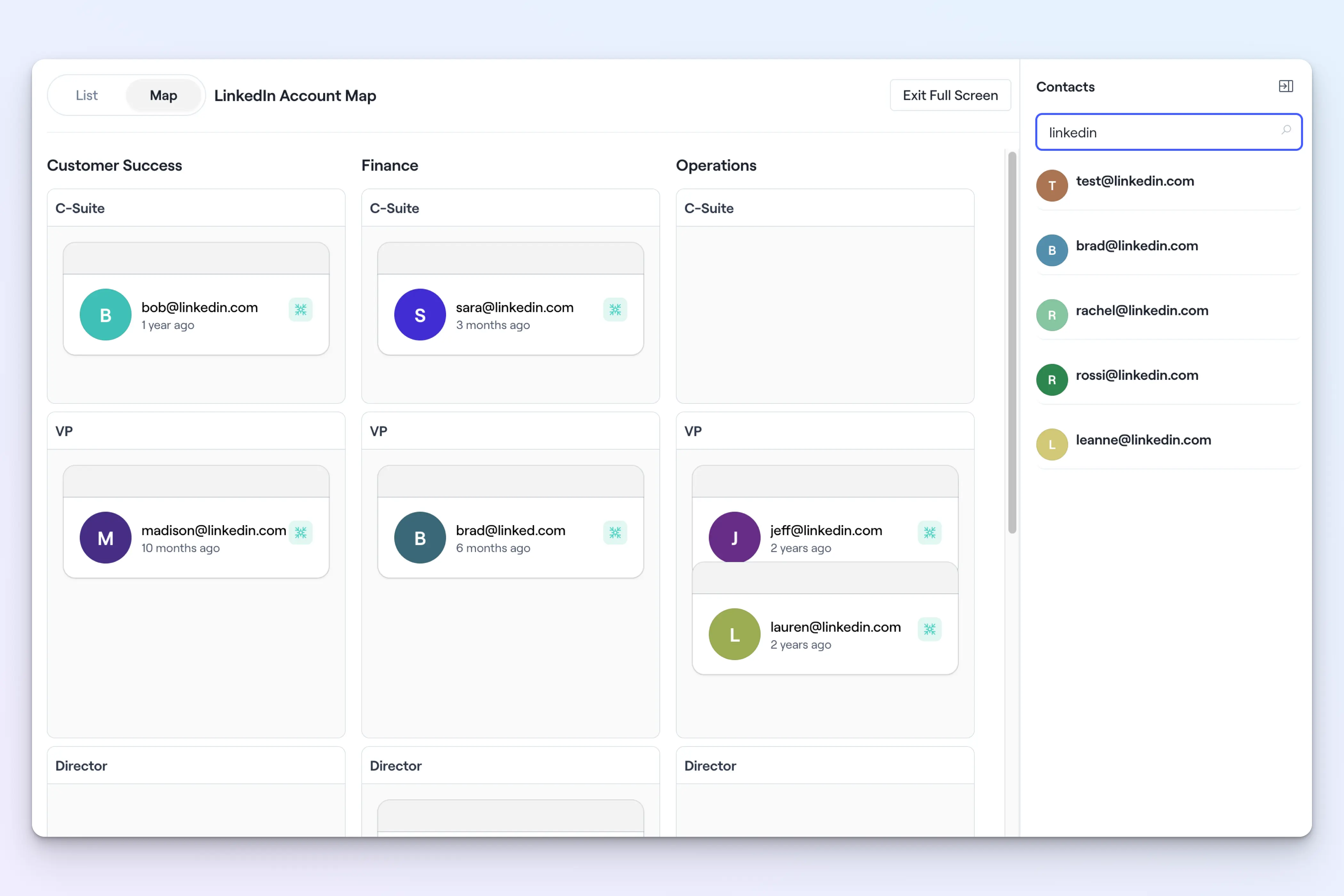
It's a big upgrade for account planning and multithreading. Instead of cross-referencing CRM contacts and workspace activity separately, you get a single view of org-wide engagement—who's involved, where they sit, and how active they've been.
Admins can configure the levels, departments, and roles to match how your team thinks about accounts.
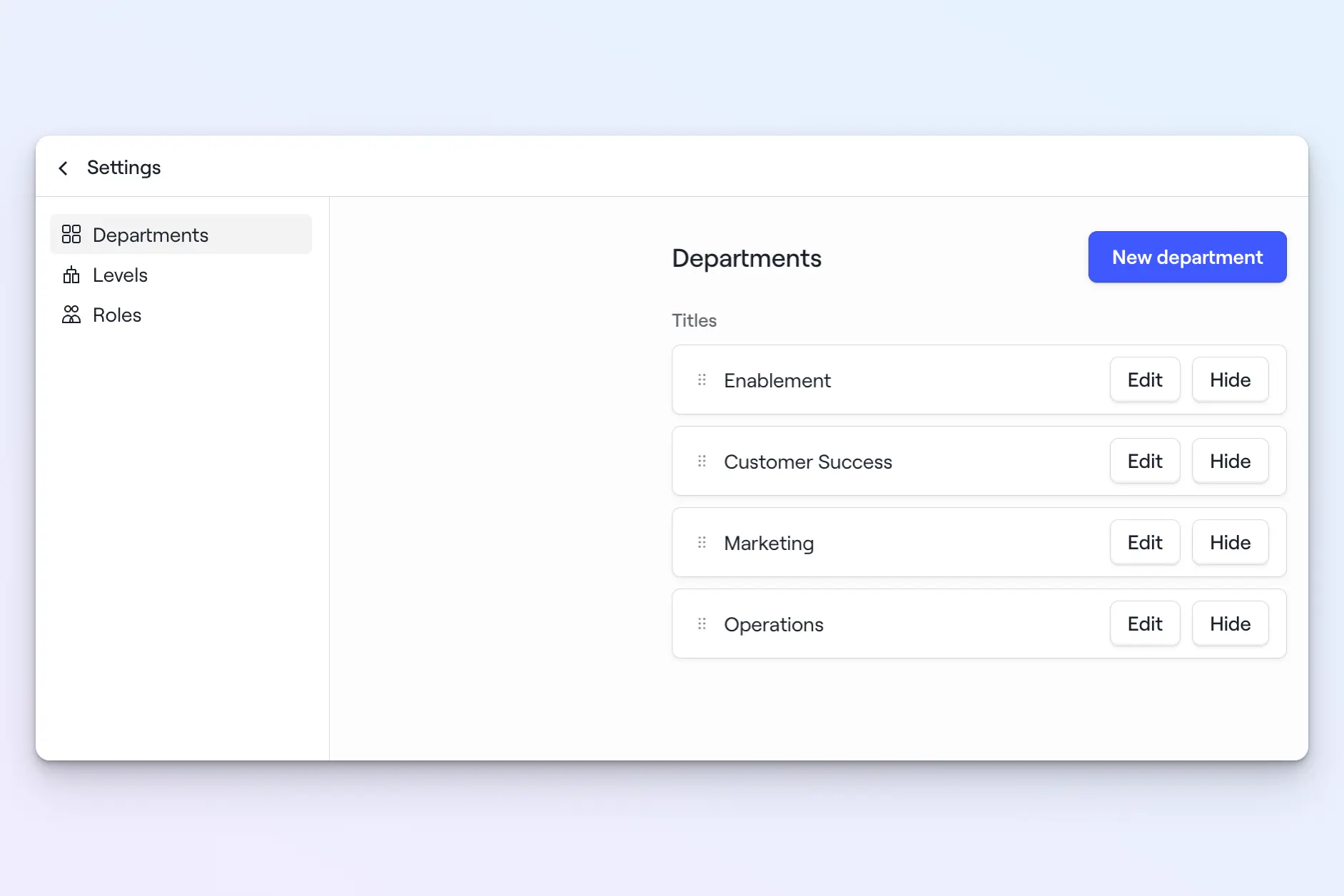
From there, reps can drag and drop contacts into the relevant bucket. The contact list pulls in anyone who has viewed the workspace, plus any linked contacts from the connected CRM account.
Reps can also click on any contact to see their details and engagement analytics.
Microsoft Teams calls
2. Pull Teams call recordings and transcripts into Dock
Dock now integrates with Microsoft Teams video calls. You can pull recorded calls directly into workspaces and use Teams meeting transcripts as a source for AI Documents.
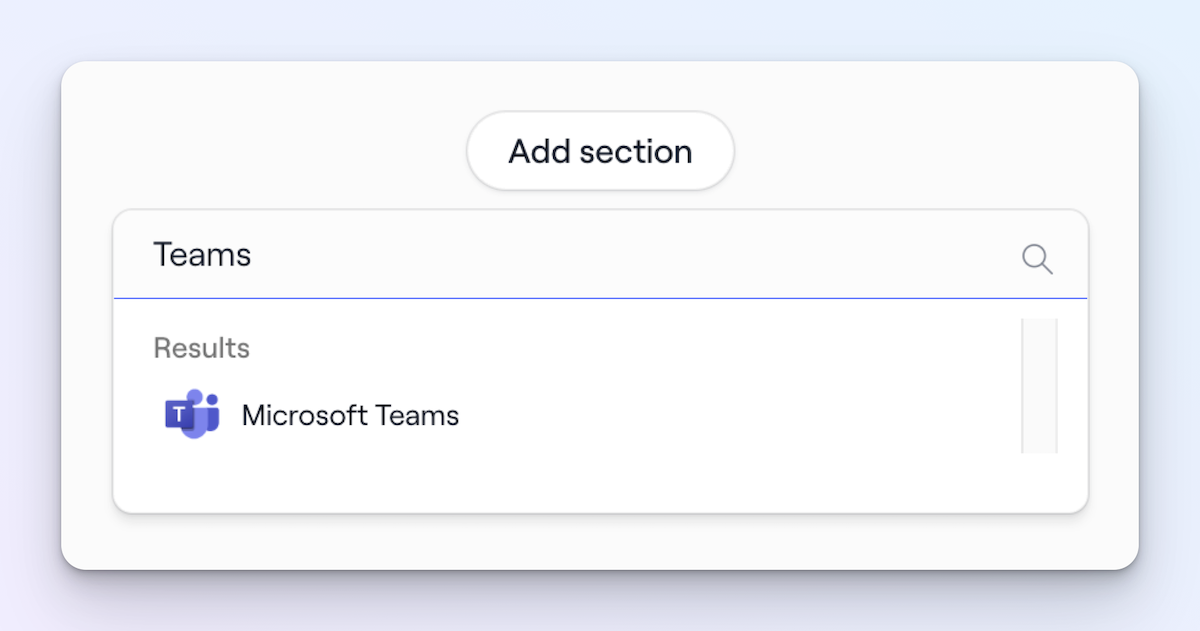
If your team uses Teams, your call recordings now live alongside the rest of your customer-facing content. For more details on setting this up, check out our Help Center.
Library updates
3. Organize your templates with folders
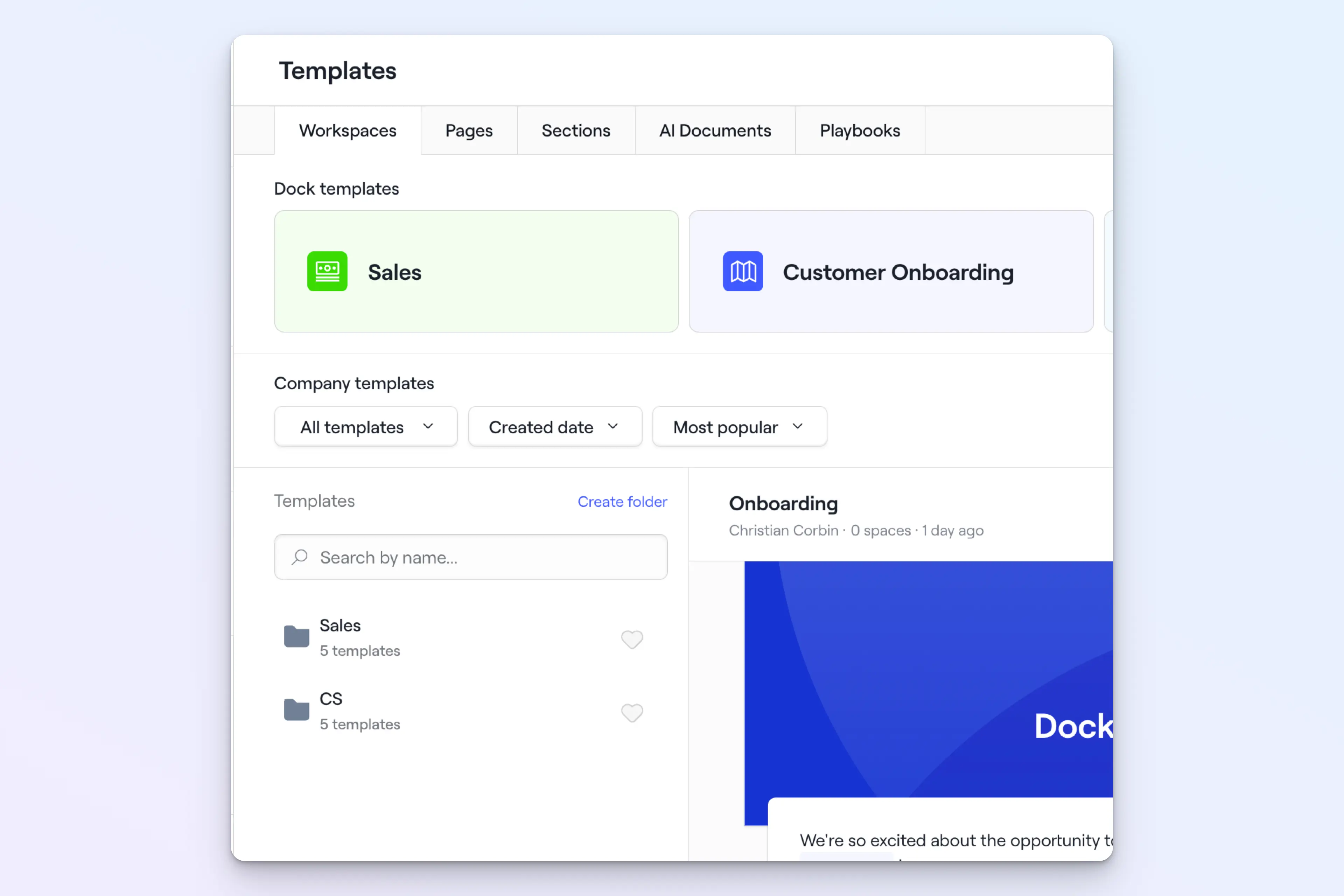
Workspace, page, and section templates can now be organized into folders by your admins. This will make it much easier to stay organized if you have lots of templates.
4. Create your own Library views
Admins can now create custom-filtered views of Library files by file type, tag, and other advanced filters.
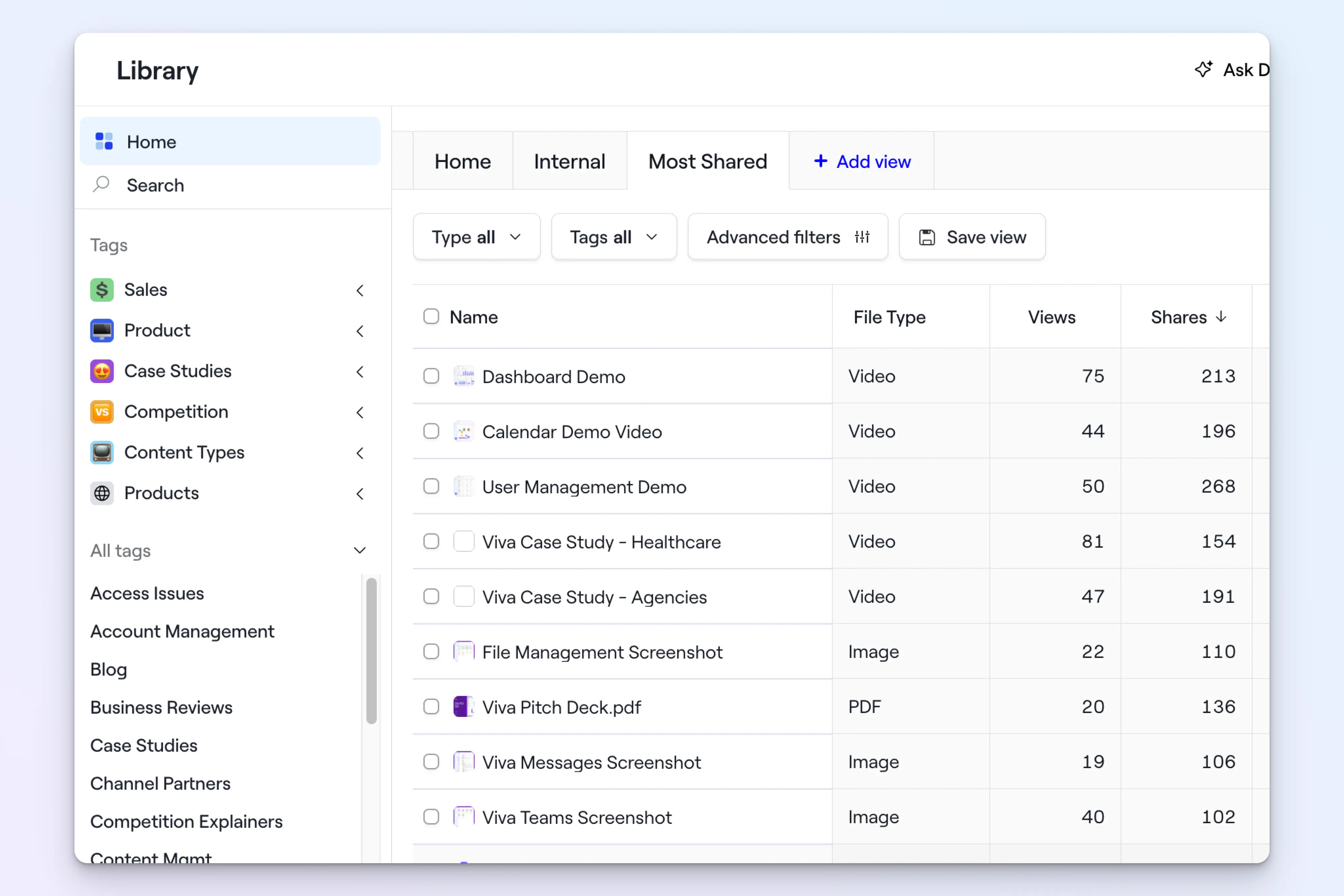
If you're managing a large content library, this makes it significantly easier to surface the right content for your team, rather than relying on search alone.
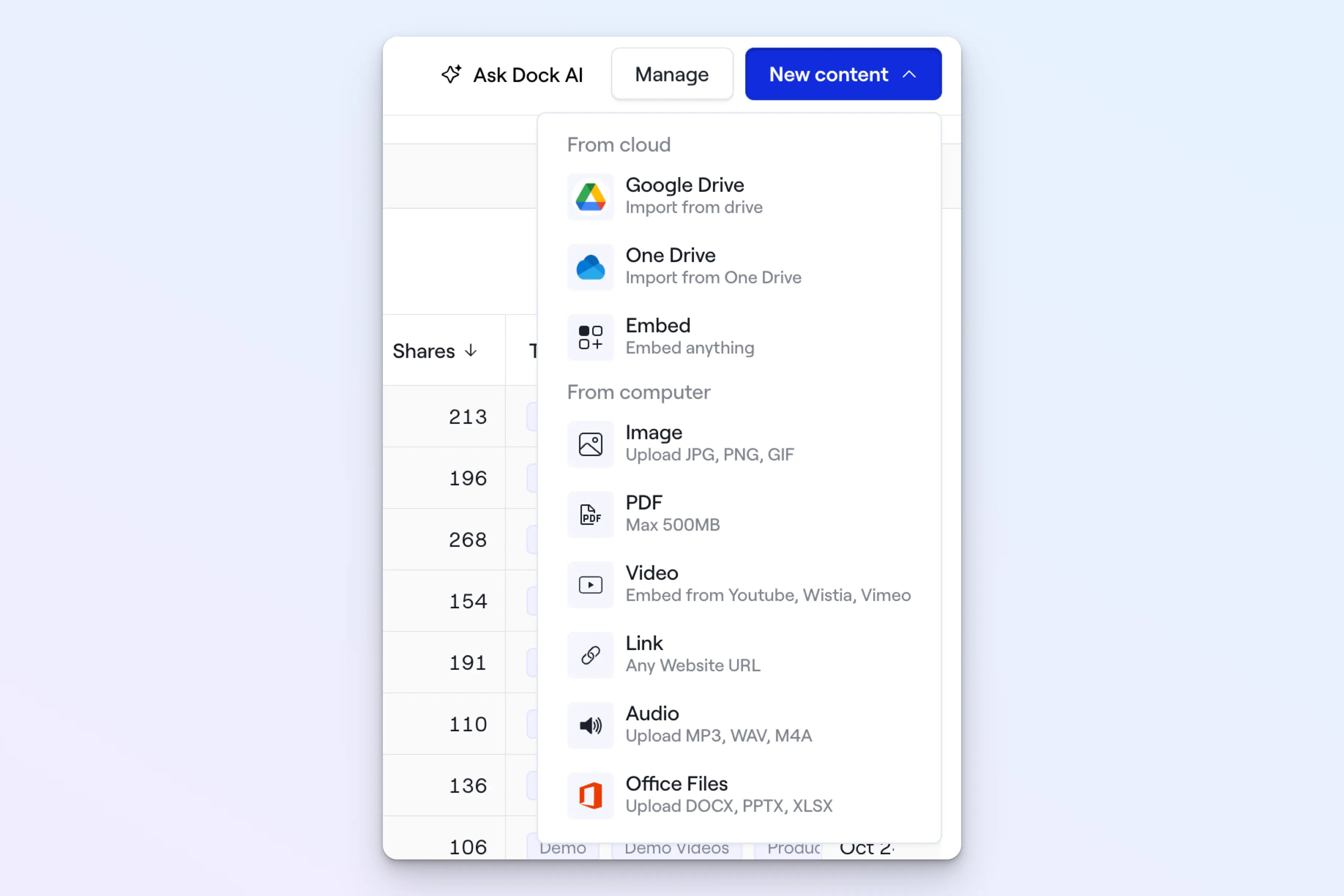
5. Upload Microsoft Office files
You can now upload PowerPoint, Excel, and Word files directly to the Library—without needing to route through OneDrive first. A truly joyous day for Office users everywhere.
6. Switch to PDF versions of Google & Microsoft files
A new library setting lets you toggle between the embedded version of a Google or Microsoft file and a PDF version.
Permission issues with embedded files have been a source of friction for some teams. Having a PDF fallback solves that cleanly.
7. Send Library asset engagement data to Salesforce
When a contact already exists in Salesforce, any engagement they have with your library content automatically logs as a Salesforce activity—so your CRM stays up to date on content interactions without any extra work.
Workspace improvements
8. Create CTA buttons
You can now add a dedicated call-to-action button to any workspace. You can customize the button’s icon, text size, colors, corner rounding, alignment, and more.
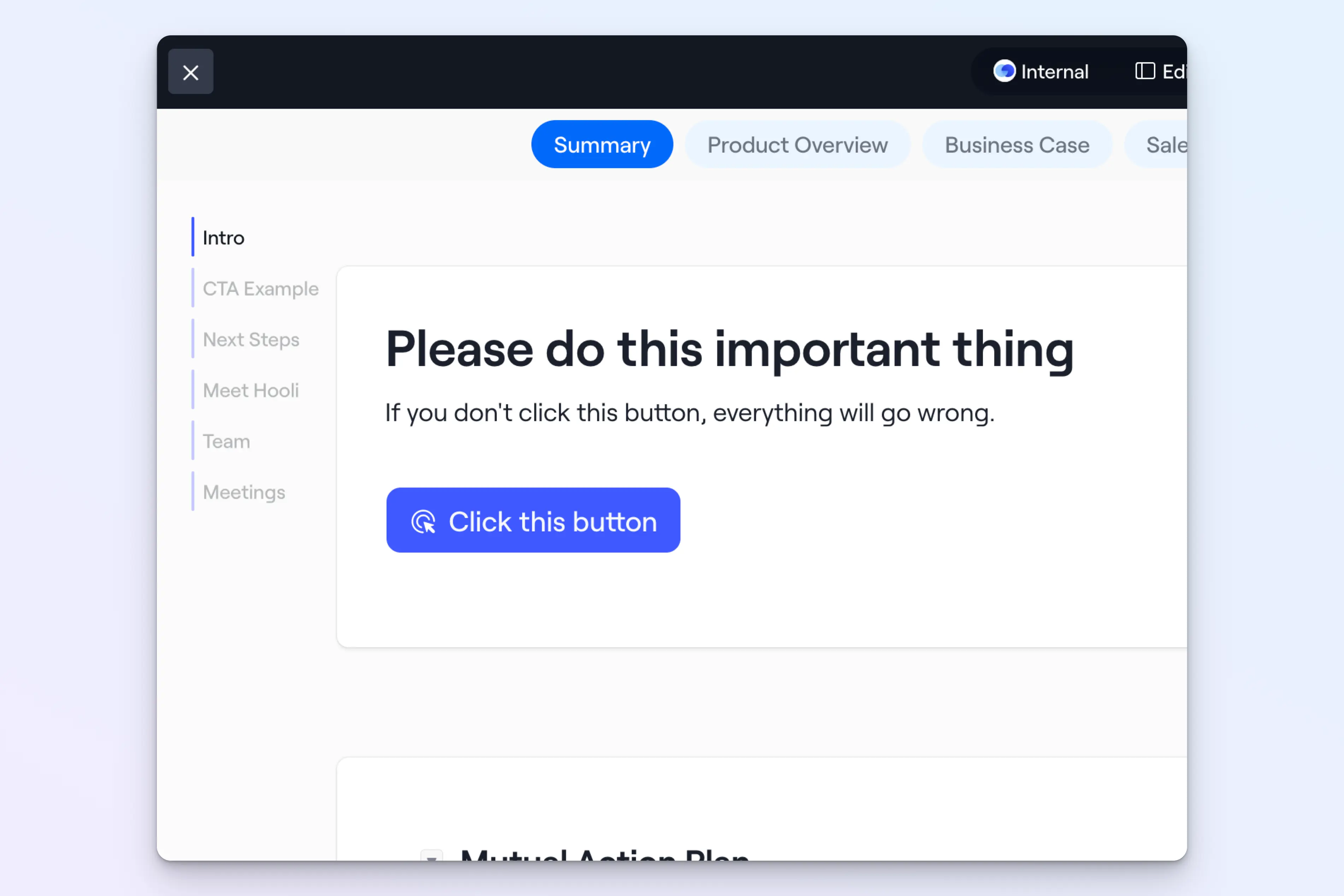
Use CTAs to share a booking link, link to your pricing page, or direct buyers to the next step in your process.
9. Customize the workspace navigation
The navigation tabs at the top of a workspace now have more design options. Choose between square tabs and round buttons, adjust alignment, add button shadows, and customize the colors.
Here's a workspace with rounded, centered tabs, for example:
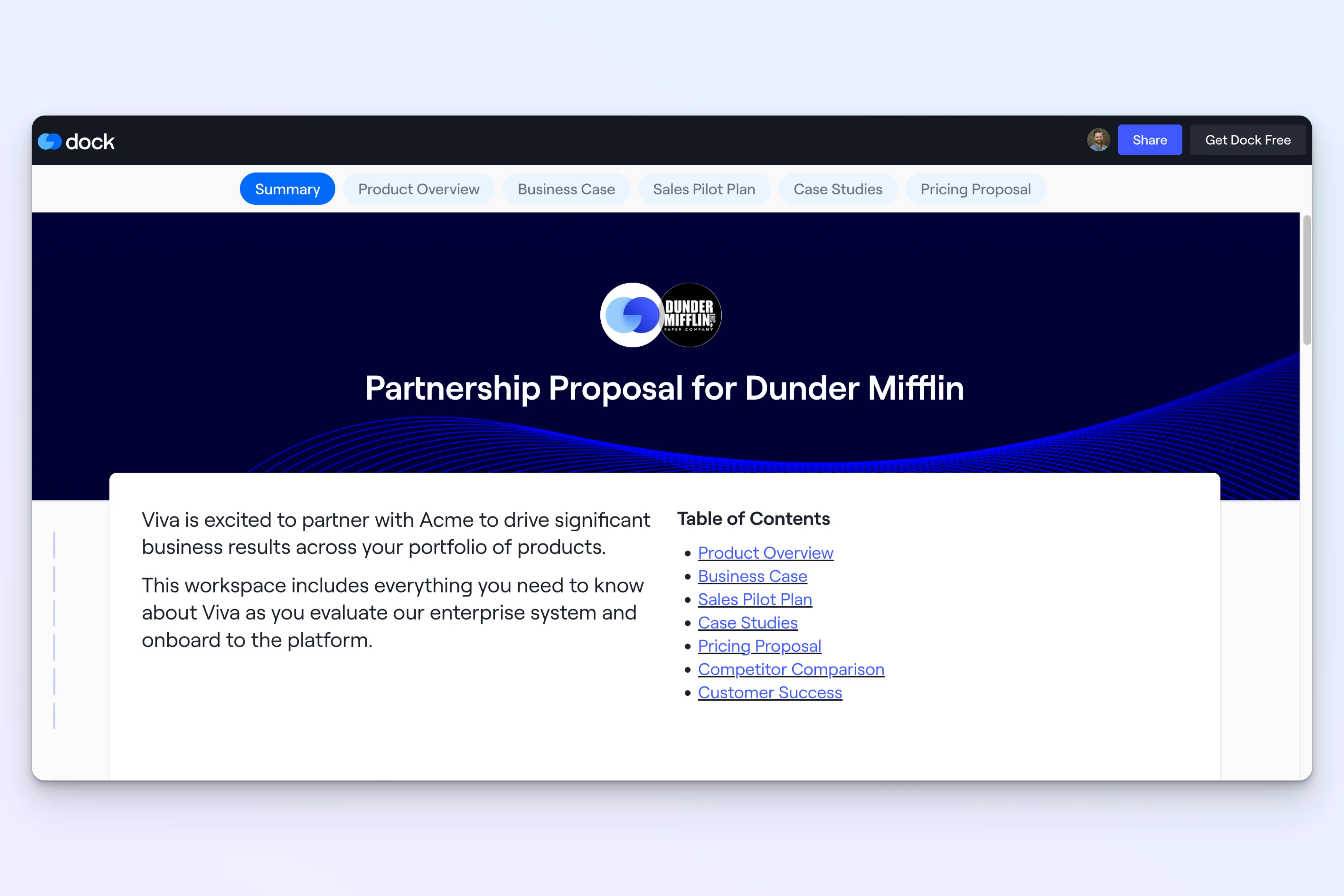
This gives you another way to make workspaces feel on-brand.
10. Customize the workspace header
We've also given you more design control over the header of workspace pages. Choose the layout, background, borders, shadows, font size, and more with the new header design panel.
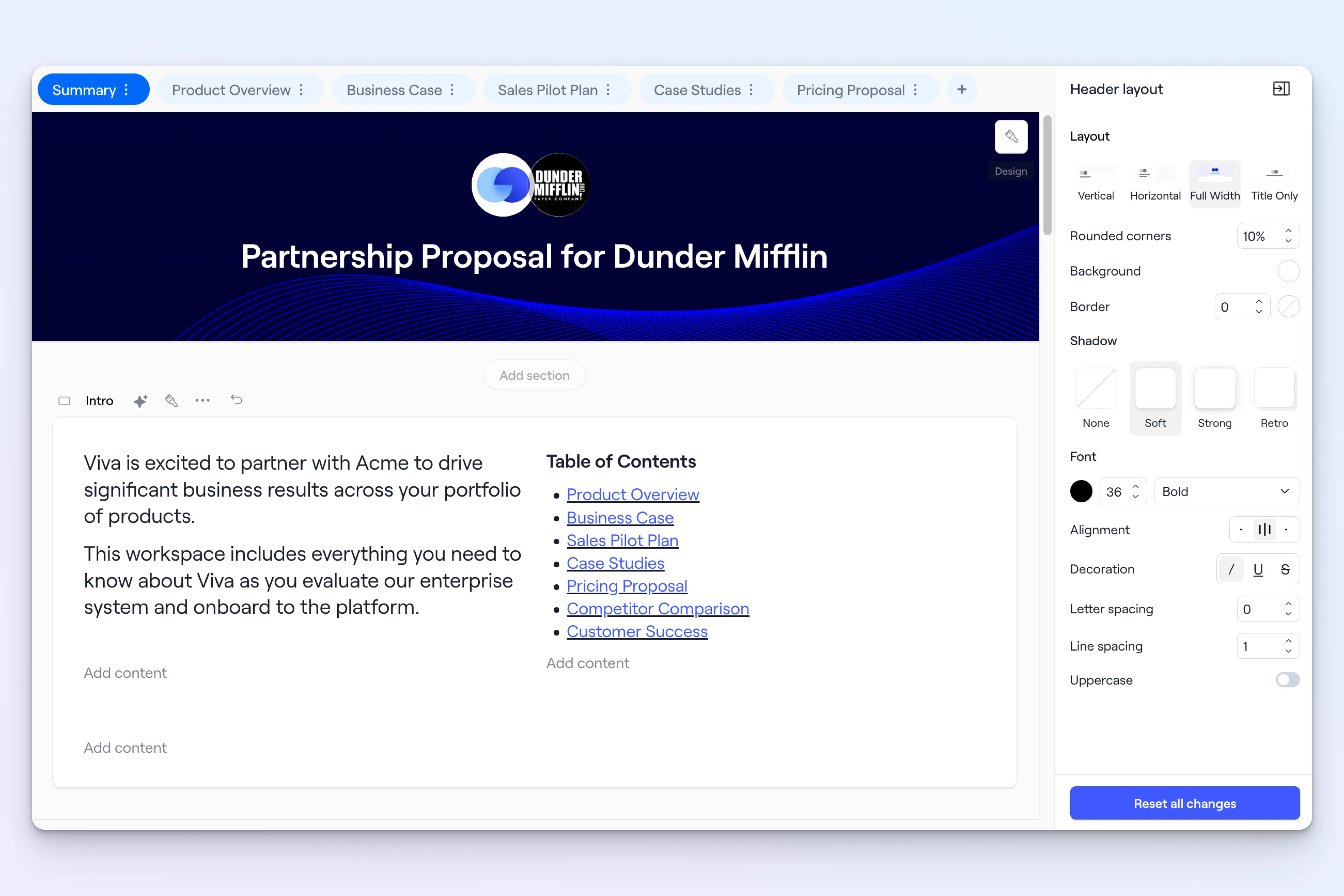
11. Stay in design mode as you edit
When making design changes in a workspace, the design panel used to close every time you clicked into a different section. Now, the design panel stays open as you navigate between sections, blocks, columns, and widgets.
This will make it much smoother to make multiple design changes across your workspaces.
12. Access editor and share links from the dashboard
You can now open the Editor or copy the Share link for any workspace directly from the workspace dashboard view—without clicking into the workspace first.
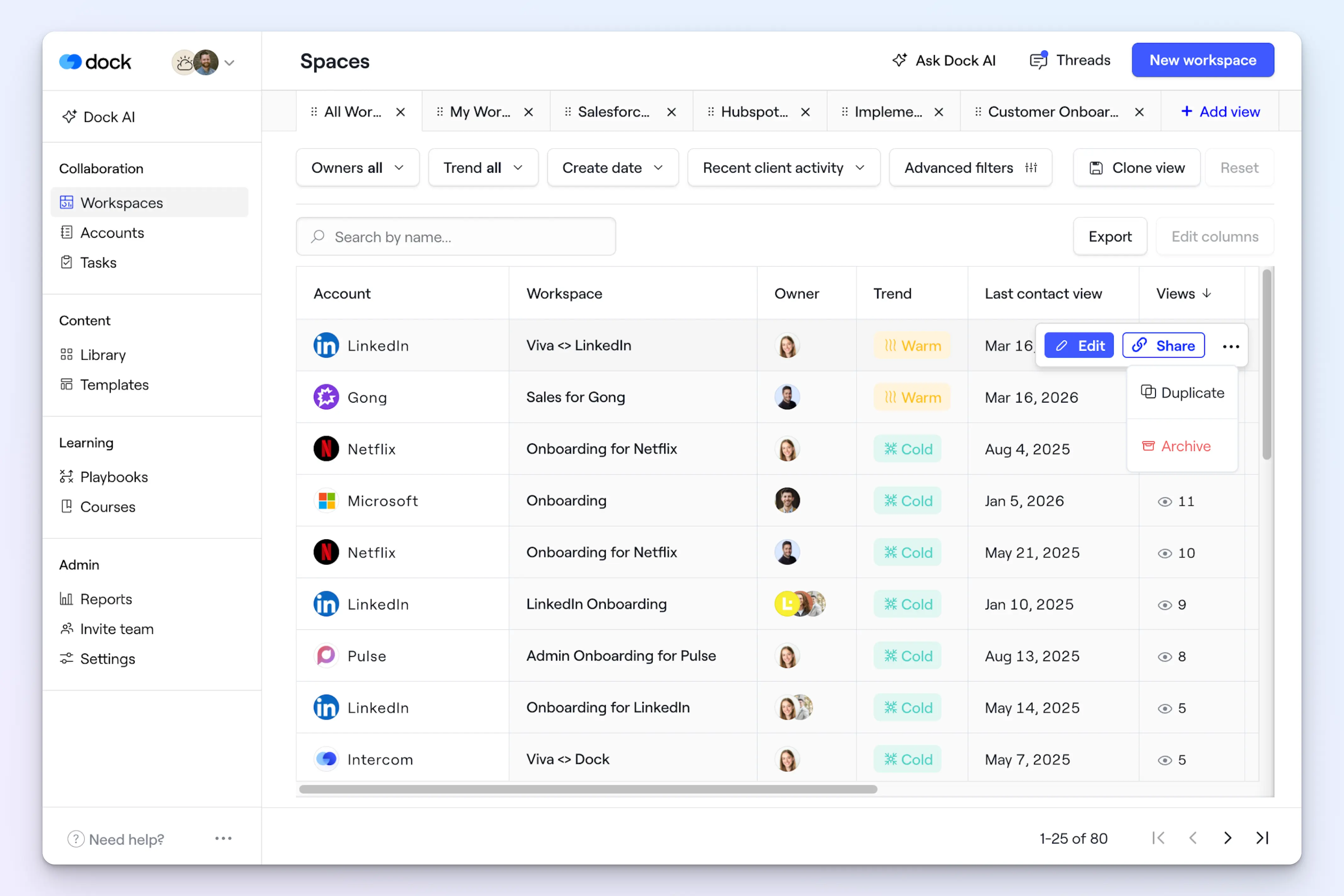
This means fewer steps to get where you're going.
13. Get notified about new automated workspaces
The workspace owner now receives an (optional) email when a workspace is created through an automation.
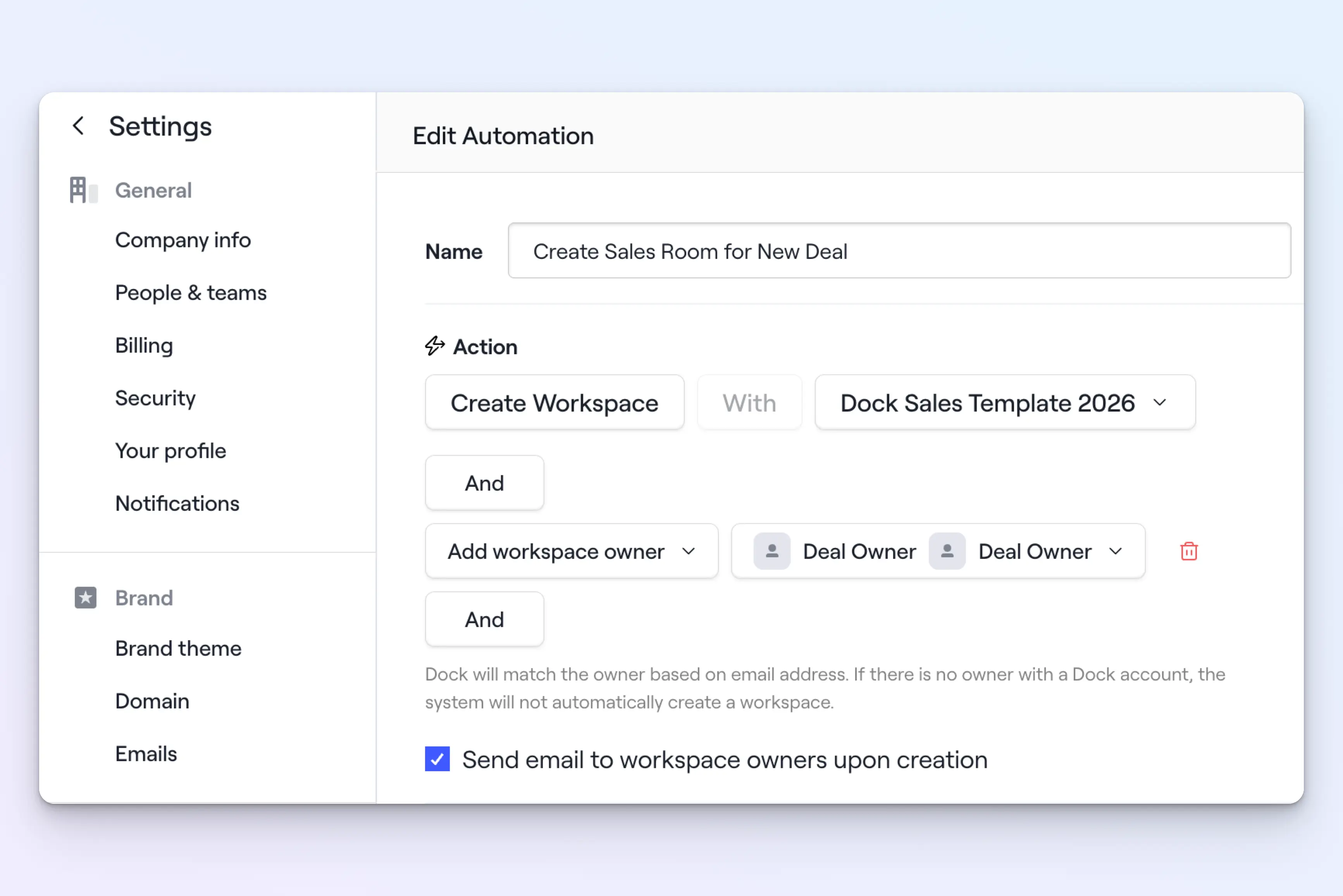
This is a small but useful update for teams running high-volume workflows who need to know when a workspace is live and ready to go.
AI document upgrades
14. AI-generate timelines & price cards
AI Documents can now generate a timeline or price card from a source document, like a customer call transcript.
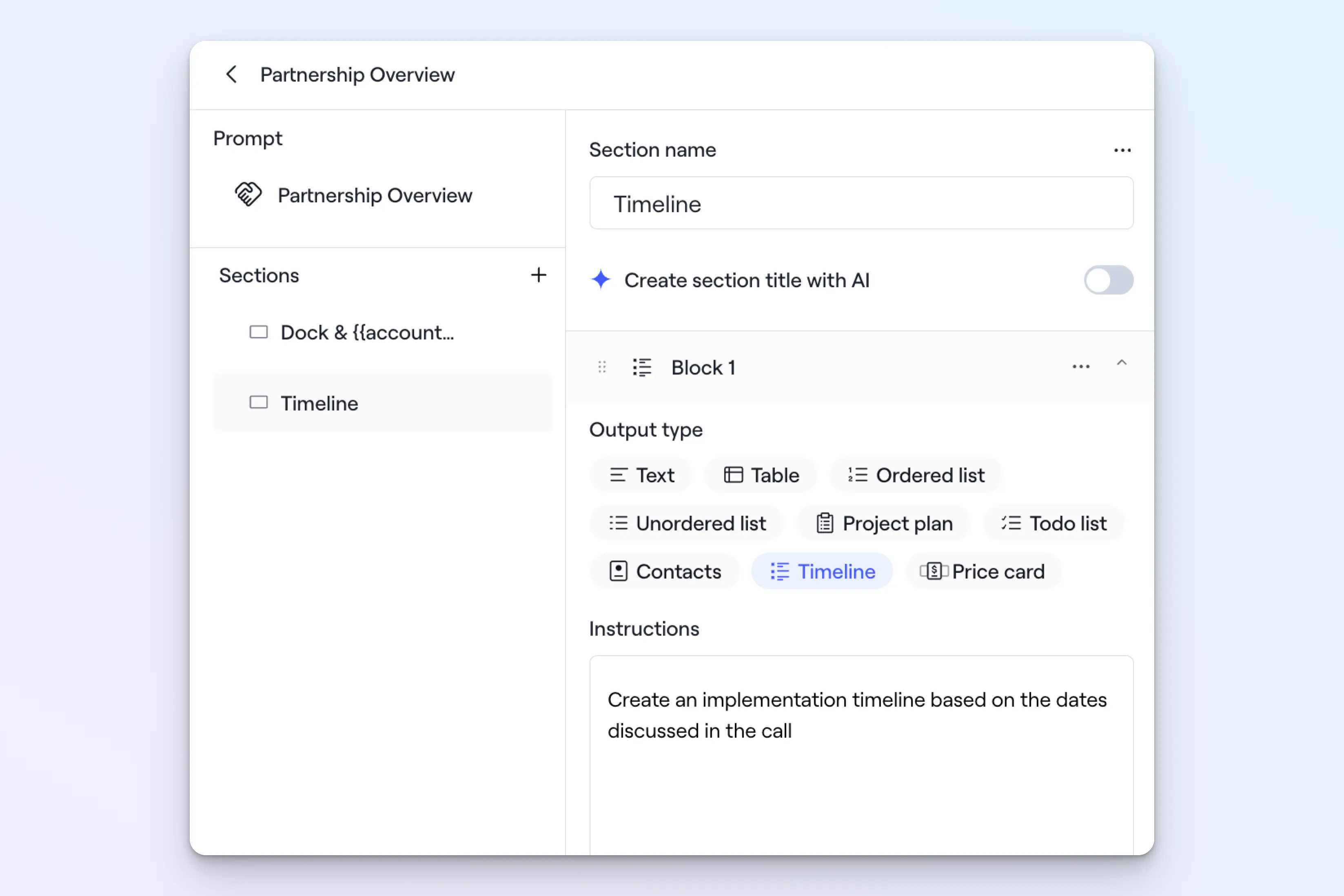
15. Push AI documents to CRM fields
Each output section of an AI Document can now be mapped to a CRM field.
This means you can generate an executive summary, business case, or handoff notes—and have it automatically push back to the designated field in your CRM.
For teams that care about data quality and pipeline visibility, this closes the loop between what you're generating in Dock and what lives in your CRM.
That’s a wrap 🌯
These small-but-mighty updates are about giving your team more visibility—into accounts, into content performance, into what's happening across your CRM—while making the everyday experience of building and managing workspaces a little faster and more flexible.
As always, keep the ideas coming to support@dock.us. A lot of these Little Things updates start with your suggestions.
And stay tuned—we're launching another big new feature in a few weeks.
— Alex


Related Revenue Lab Articles


.webp)


Templates for Sales, Onboarding,
Projects and Portals
Customize and share with clients


