



Message threads. Custom pricing cards. Table of contents widget. Expanded file support in the Library. Ungated Library assets. And lots more small, but impactful updates you’ll love in Dock.
As we gear up for the holidays—and the inevitable scramble to close out the year—we've been tightening up Dock in all the places you use day to day.
And while we've shipped plenty of flashy AI features lately (including AI Documents and the AI Enablement Agent), we didn't want these smaller, high-impact improvements to get lost in the mix.
In fact, there were so many new features and refinements that we had to split them across two December product updates.
This first update focuses on new workspace and content management features—all of which came from customer requests.
.png)
Quick highlights:
- Track messages, comments, and task activity with Threads
- Send white-labeled Dock emails from your own domain
- Customize pricing cards with full design controls and inline editing
- Create dynamic tables of contents that update automatically
- Edit dynamic variables in-line and sync rich-text CRM fields
- Support Google and Microsoft files in the Content Library
- Share ungated or internal-only Library assets, depending on your use case
Get the full round-up below!
Update: Here's part two with more Little Things You'll Love: 11 Dock AI & Integration Updates.
What’s new in Dock workspaces
1. Track comments and messages with Threads
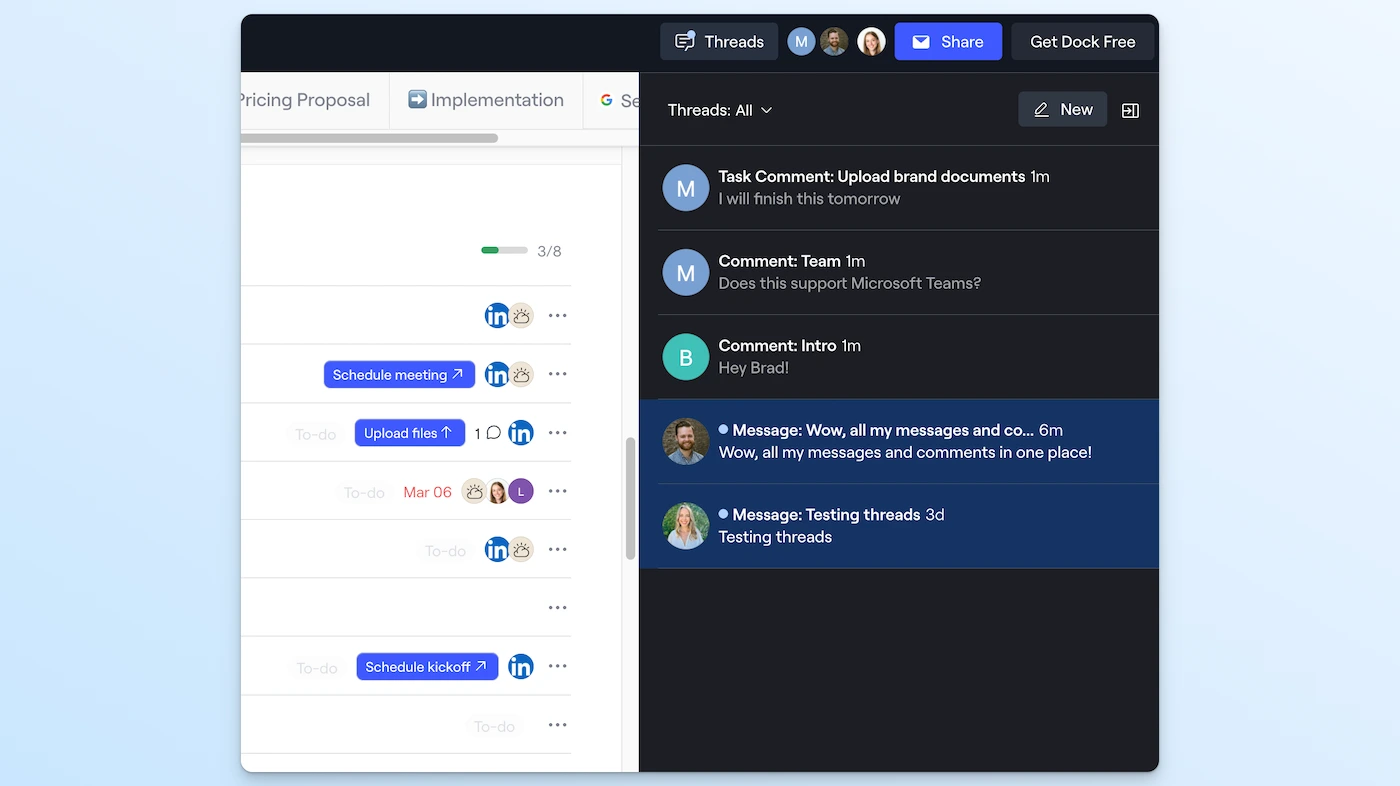
We've added a Threads panel that provides a unified inbox-style view of all the messages, comments, and task comments in each workspace—making it easier to keep up with customer conversations without jumping between multiple views.
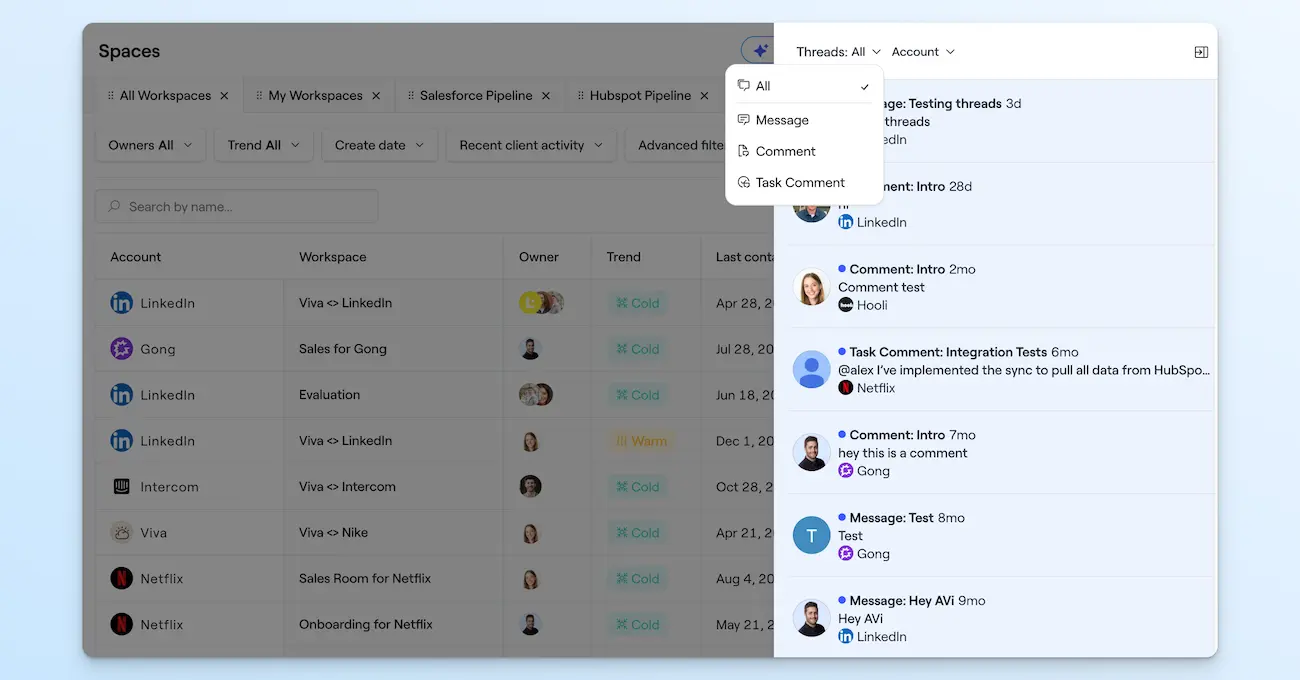
We've also added a roll-up of all Threads to the Workspaces dashboard (filterable by account), so you can see all your customer communication in one place.
2. Send custom emails from your own domain
Enterprise customers can now white-label all Dock emails to send from your own email domain, which means every client-facing email—workspace shares, messages and comments, task assignments and reminders, order forms—comes from you, not us.

For more info, visit our Help Center.
3. View all workspaces created from a template
You can now see all workspaces associated with a template, giving Enablement, Customer Success, and RevOps clearer visibility into how templates are being used across deals and accounts.
4. Make customized pricing cards
We've revamped the Pricing cards widget to support inline editing and full design-panel controls.
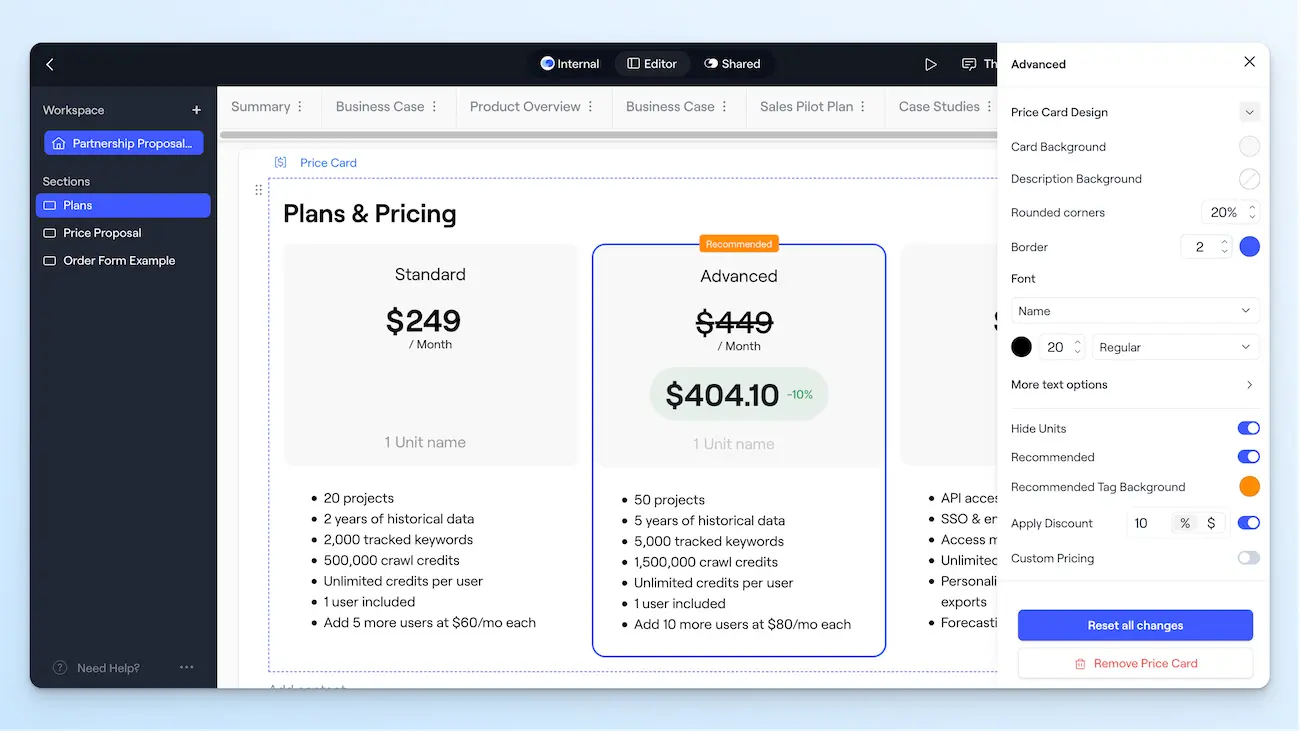
You can customize the look and feel of each pricing option—labels, descriptions, units, discounts, and more—directly in the workspace.
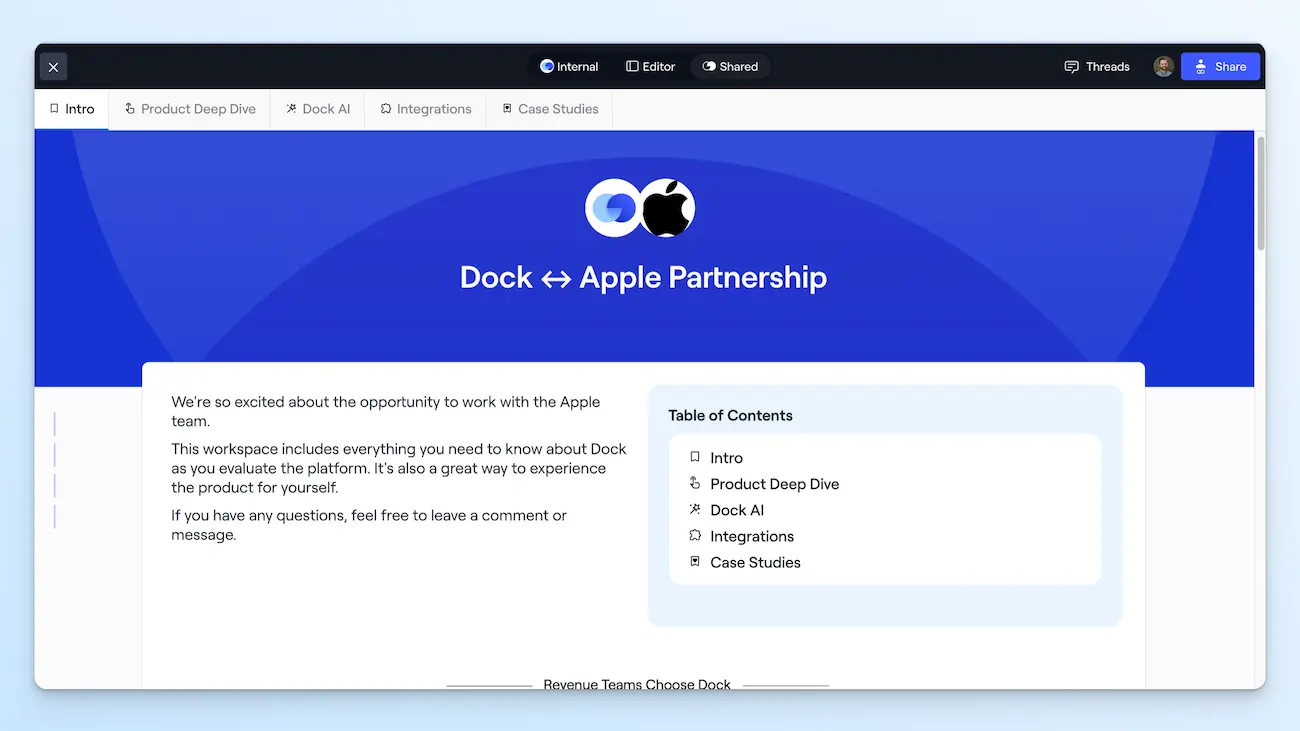
5. Create a dynamic table of contents
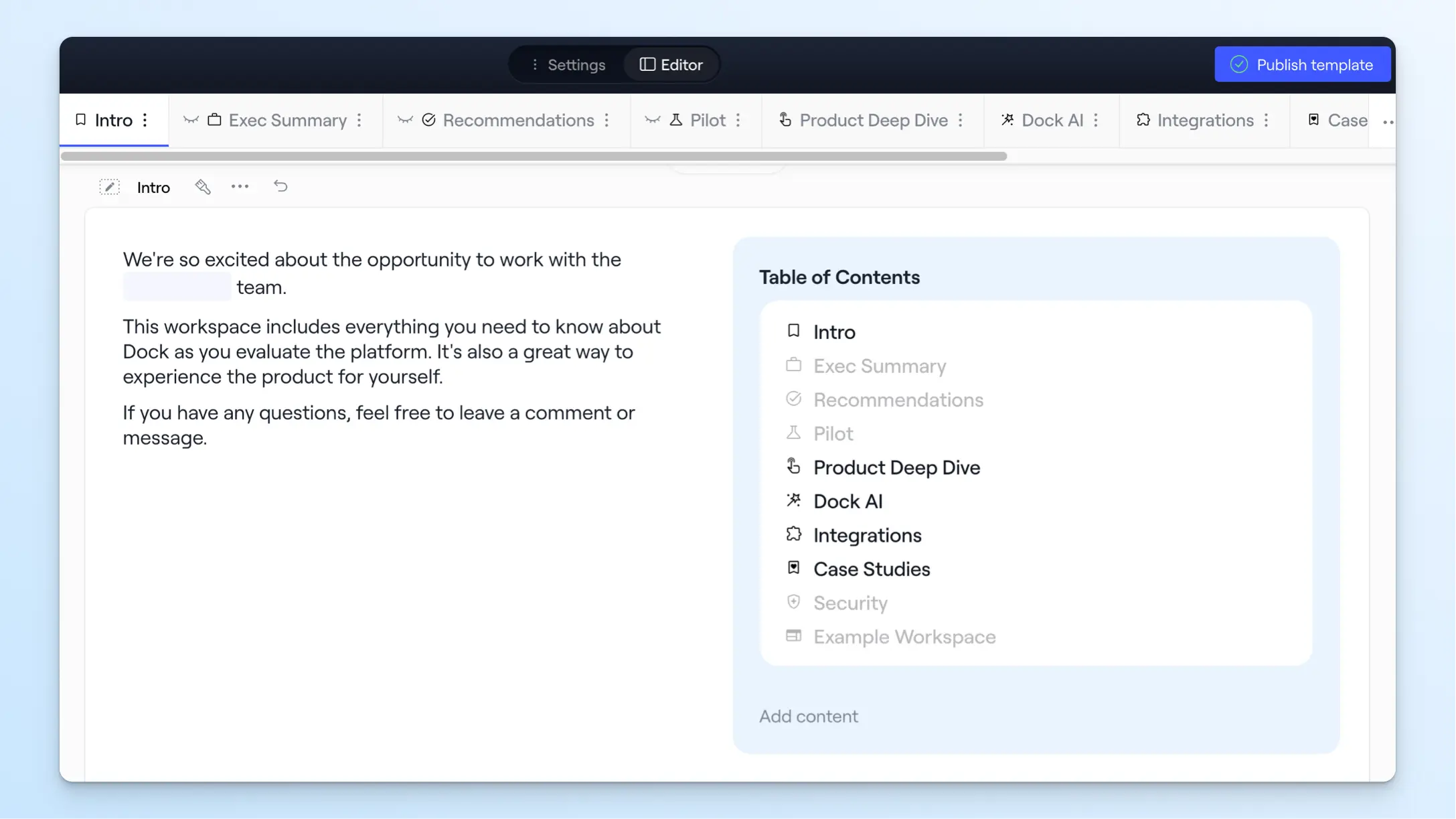
The new Table of Contents widget updates dynamically based on what pages are shown or hidden in the workspace. This means you can adjust what customers see (hiding pricing before legal, showing implementation only after signature) without manually rebuilding the ToC each time.
In the editor, you'll see which pages are currently hidden:
In the Shared view, your clients will only see the currently visible pages:
6. Link task actions to workspace pages
You can now link the task action buttons in your action plans directly to a specific page in the workspace.
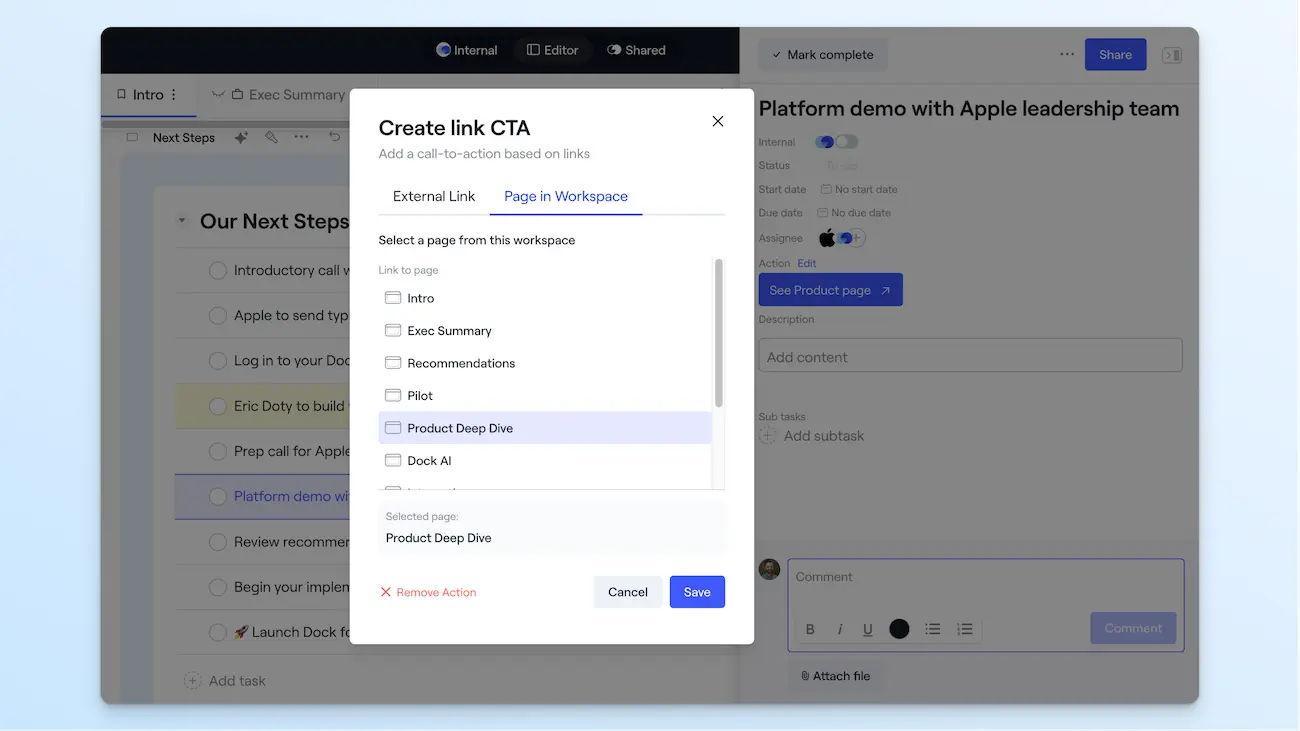
This guides customers to the exact content they need to complete that step—whether it’s a pricing quote, legal document, business case, or tutorial video.
7. Edit dynamic variables in-line
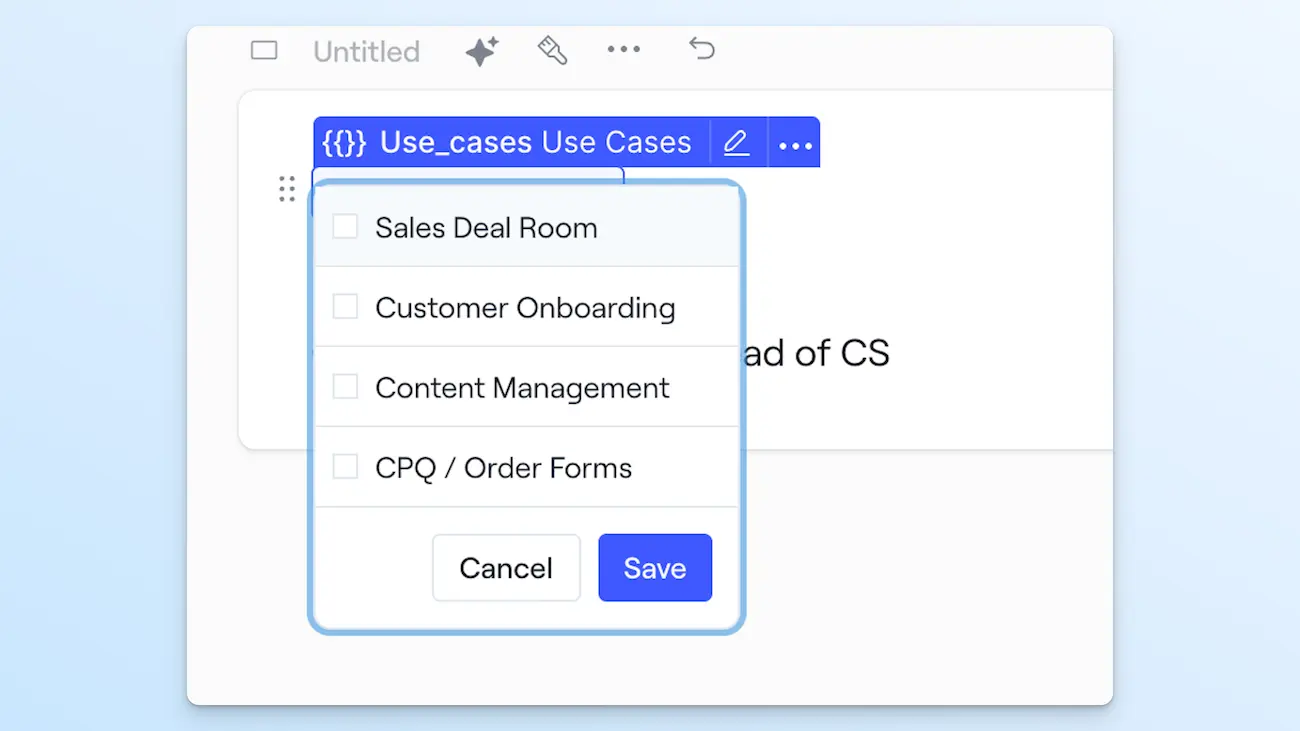
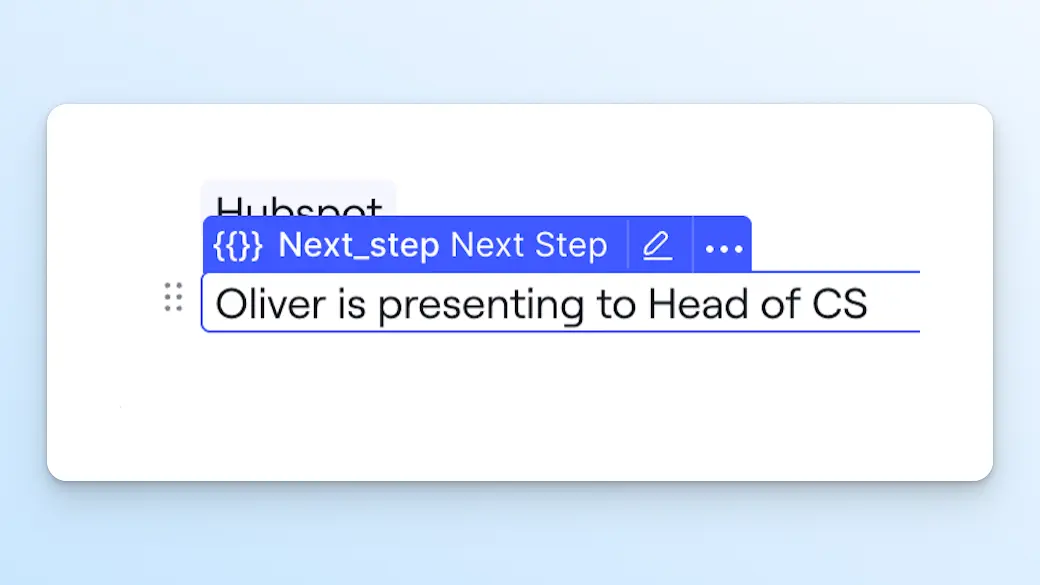
Instead of seeing a placeholder dynamic variable, you'll now see its actual contents—which are directly editable in-line. This makes it much faster to personalize workspaces without hunting down the variable settings.
For example, you might have a variable for which products a customer is interested in. You can now check those off in-line and send it back to your CRM.
Or you might have a text field in your CRM like “Next Steps” that you can update and sync in-line.
8. Sync rich-text CRM fields
Speaking of custom fields, we’ve also improved support for rich text fields from Salesforce and HubSpot. You can sync dynamic fields that use bullet points, bold text, and italics between Dock and your CRM without breaking the formatting.
9. Navigate connected workspaces more easily
Connected workspaces let you link multiple customer workspaces under a single URL (for sales, onboarding, and renewal, for example).
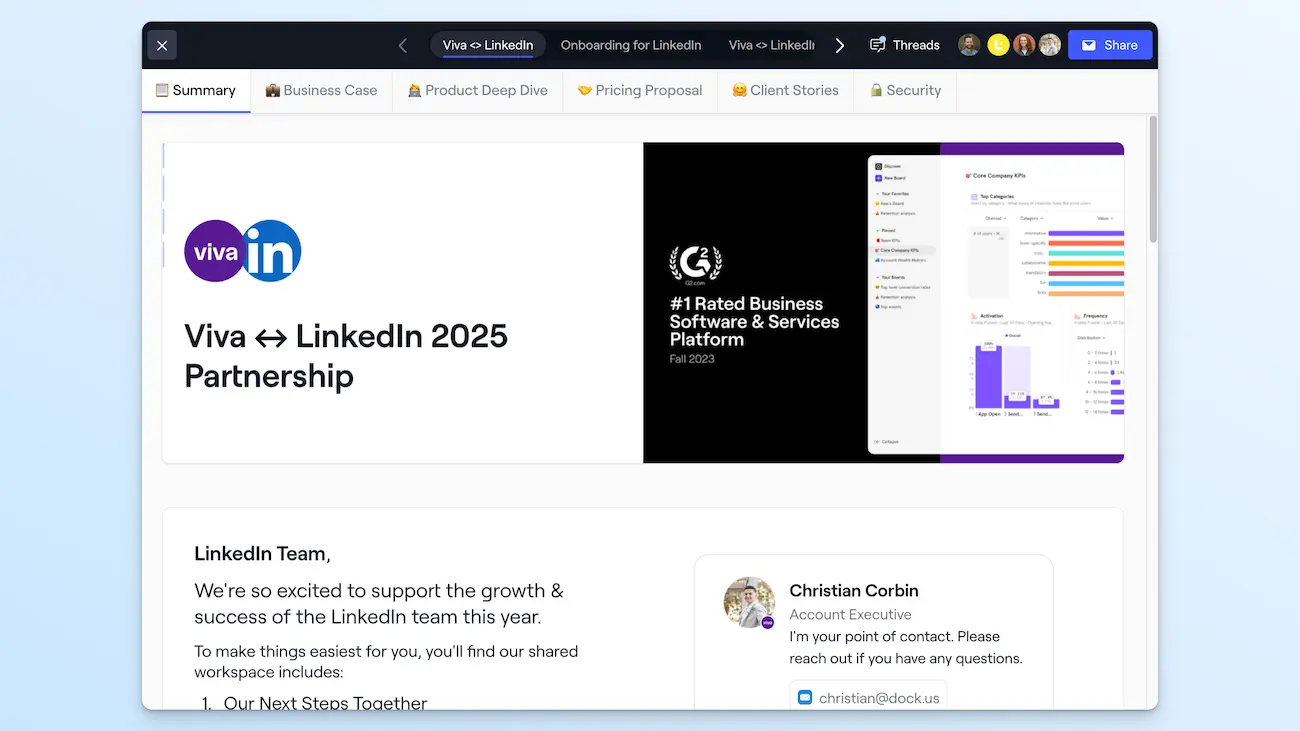
We've added arrows next to the workspace switcher in the top navigation to make it clearer when there are multiple connected workspaces or when workspace titles are long.
10. Set background colors in your brand theme
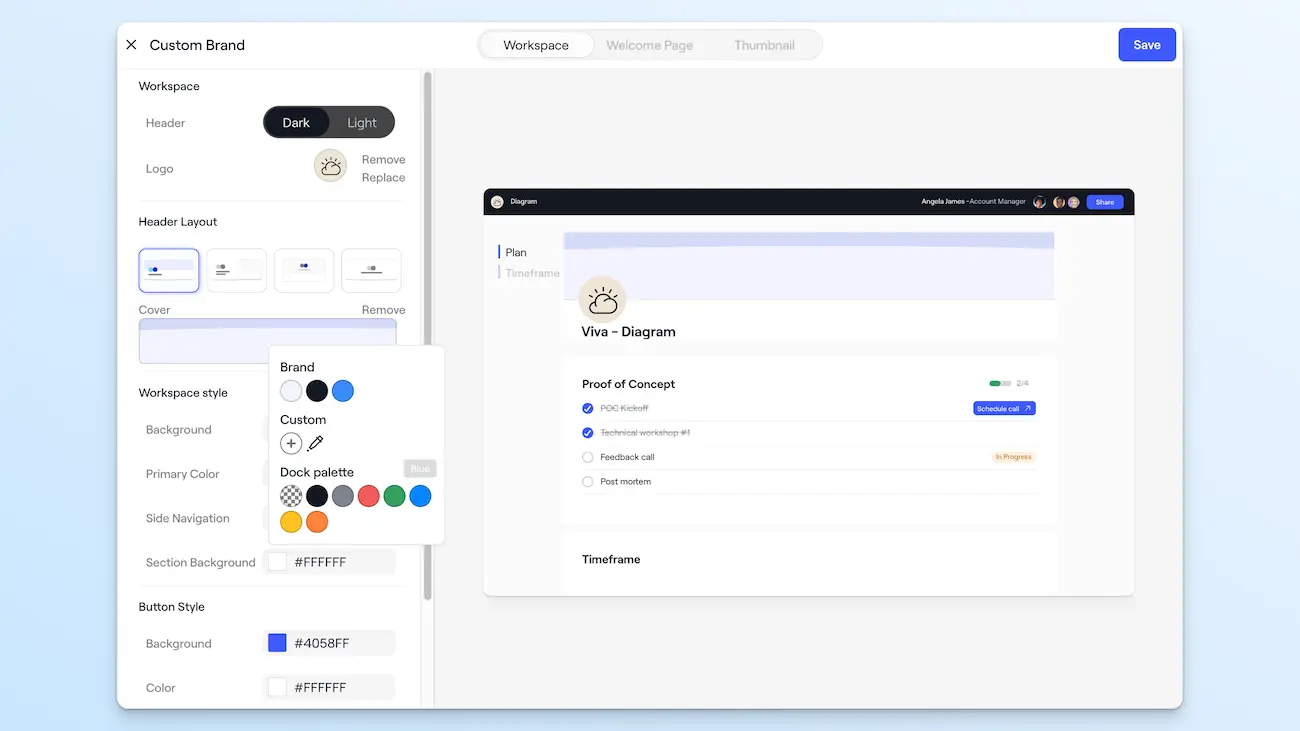
Admins can now set your company's default workspace section background color directly in your brand theme, making it easier to keep every workspace on-brand and visually consistent without manually updating each one.
11. Style each section more intuitively
We've simplified our design system to make accessing and using the design panel more intuitive. You’ll now see a paintbrush icon and blue square surrounding the section, block, or column you're editing, making it easier to tell where design changes are being applied.
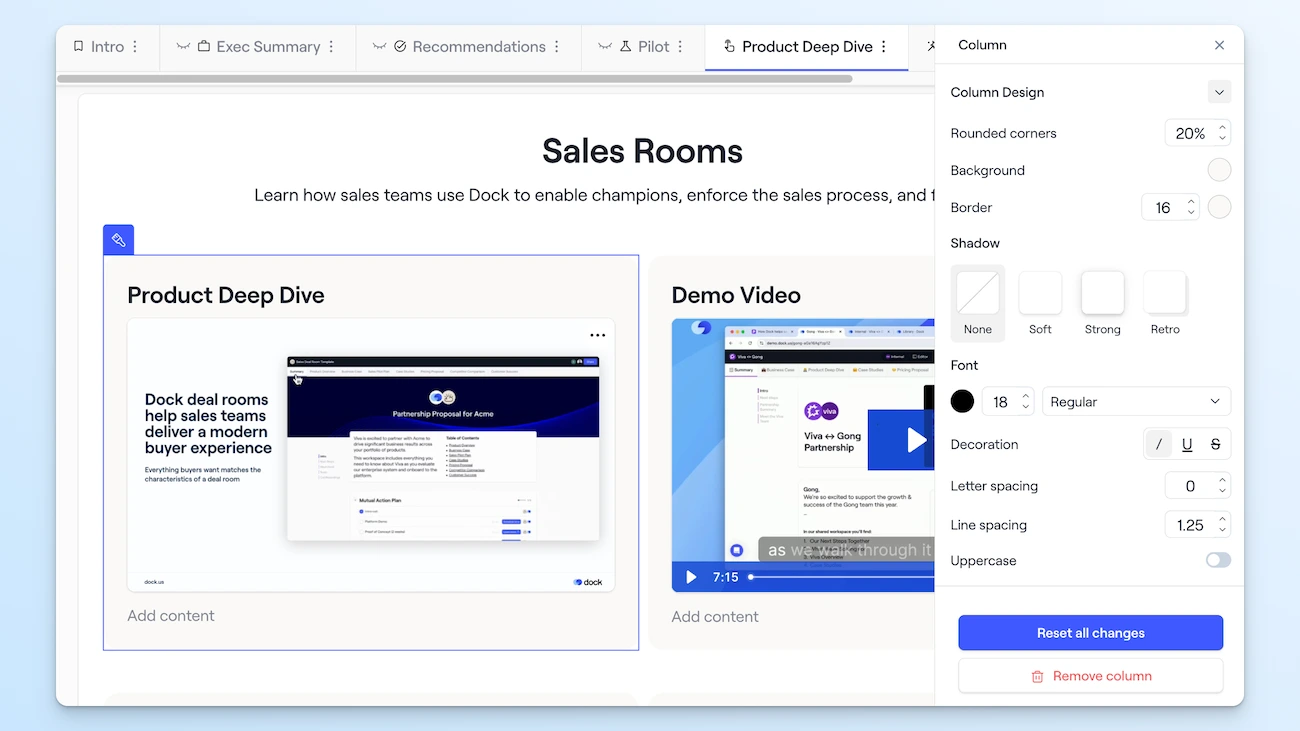
We’ve also improved the design logic so that style changes made at the section or widget level override formatting applied at the block, column, or card level.
What’s new in the Content Library
12. Sync Google and Microsoft files to your Library
Dock's Library now supports a broader range of file formats—including Google Docs, Sheets, Slides, PowerPoint, Word, Excel, and audio files.
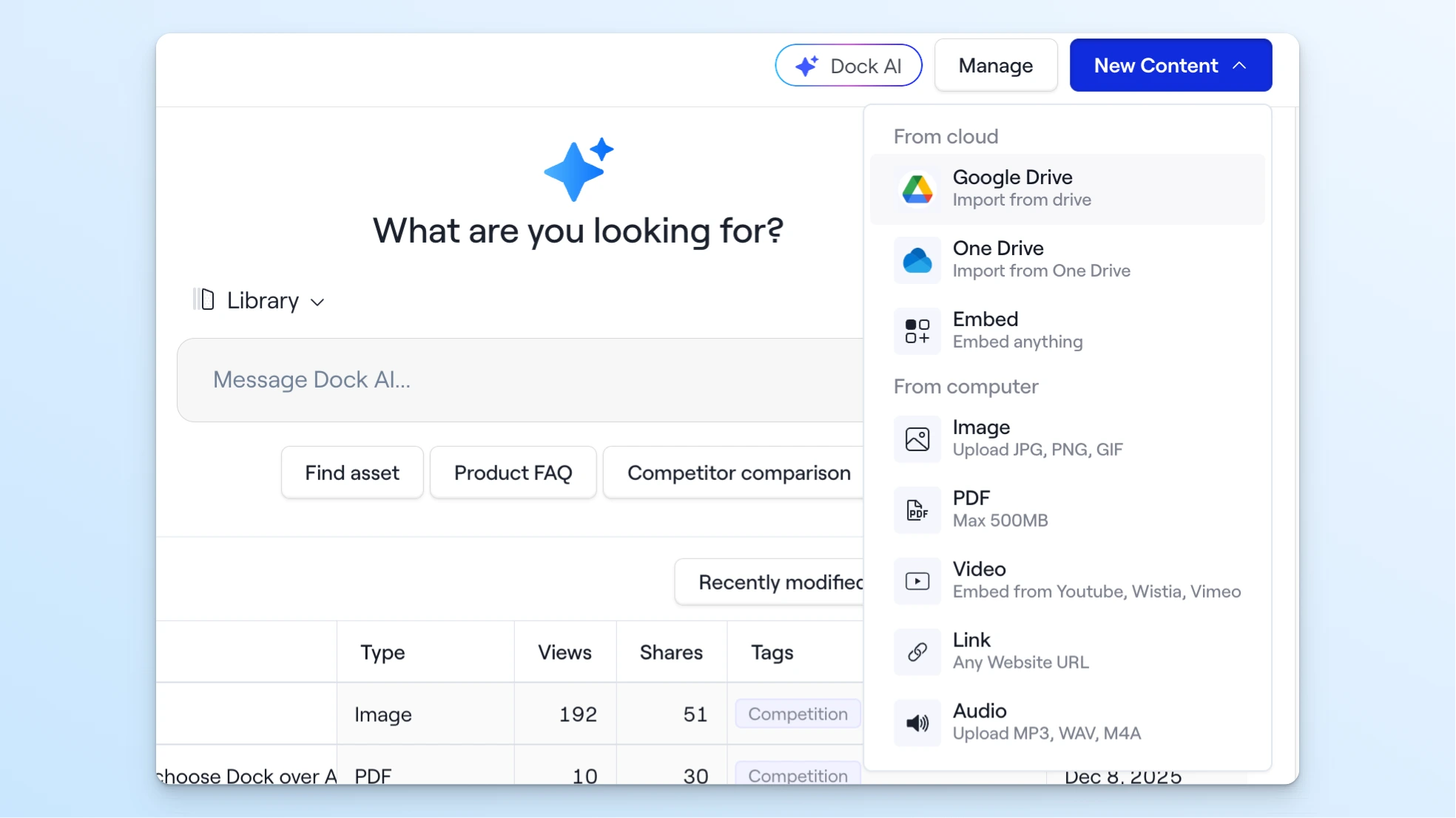
All these files act as real-time embeds and stay in sync via Google Drive or Microsoft SharePoint, giving your team a more complete, always-up-to-date content repository.
For more info on importing Drive and SharePoint files, check out our Help Center.
13. Share ungated assets
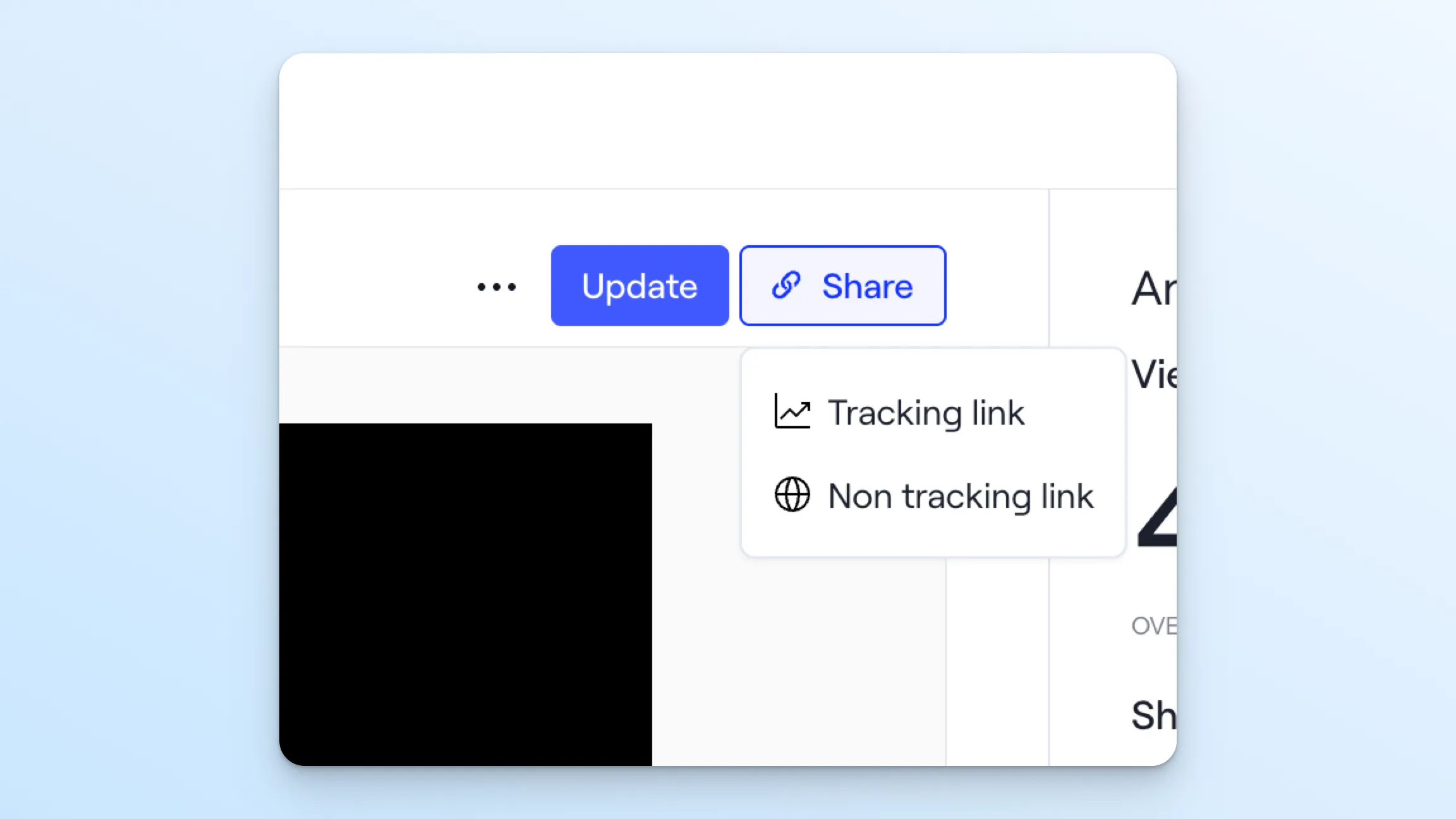
You can now share an ungated link to a library asset, allowing customers to access it without providing their email address.
When sharing a direct link to a library asset, you can choose between sharing a tracking link (gated) and a non-tracking link (ungated).
14. Add internal-only files to the Library
You can now make Library assets internal only by flipping the "Internal" switch. These files can only be shared with other Dock users in your organization and can't be added to external workspaces.
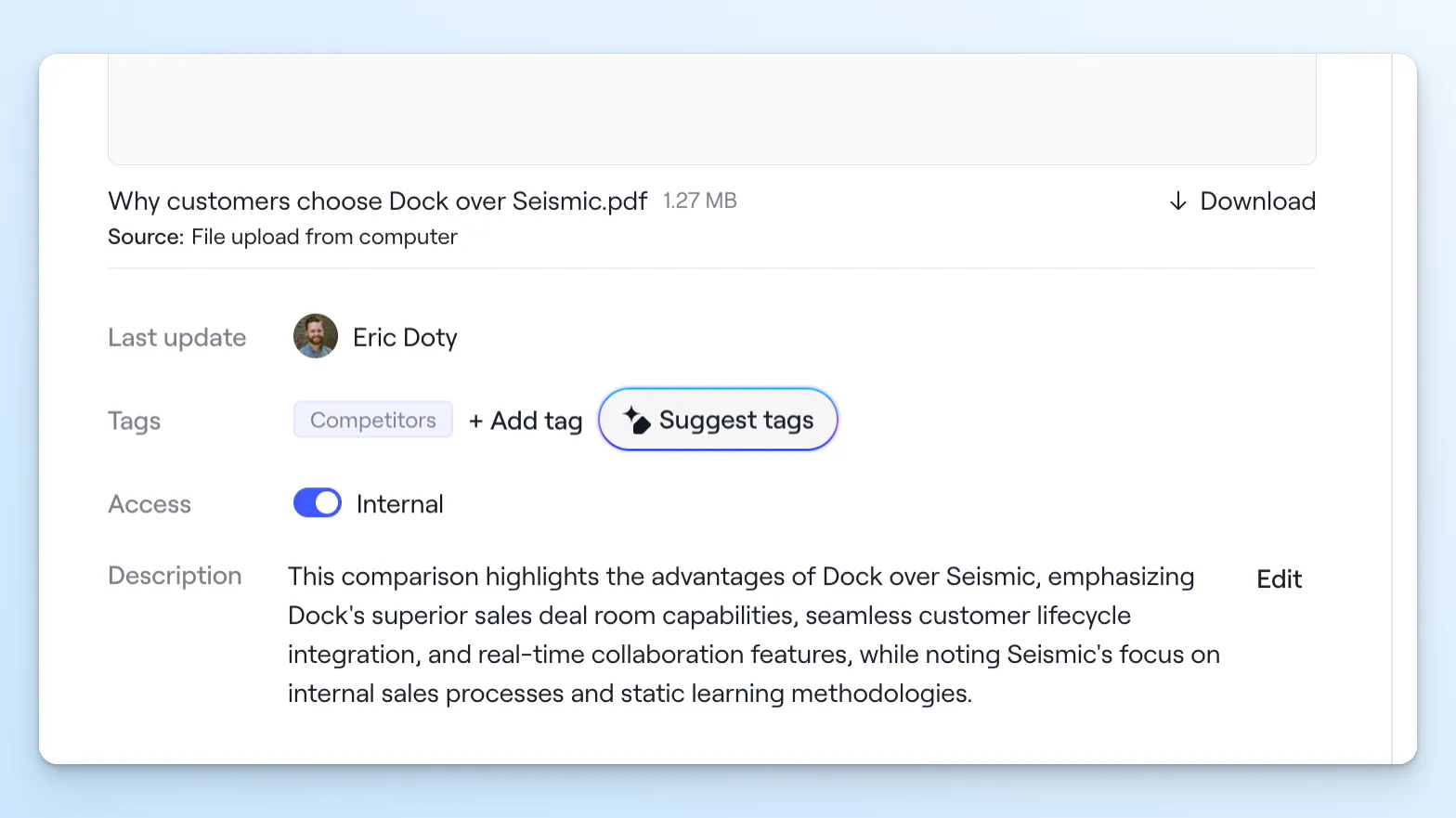
This makes Dock just as great for organizing internal-only intel like competitive battlecards, product launch materials, messaging guides, and talk tracks.
15. Smoother PDF scrolling
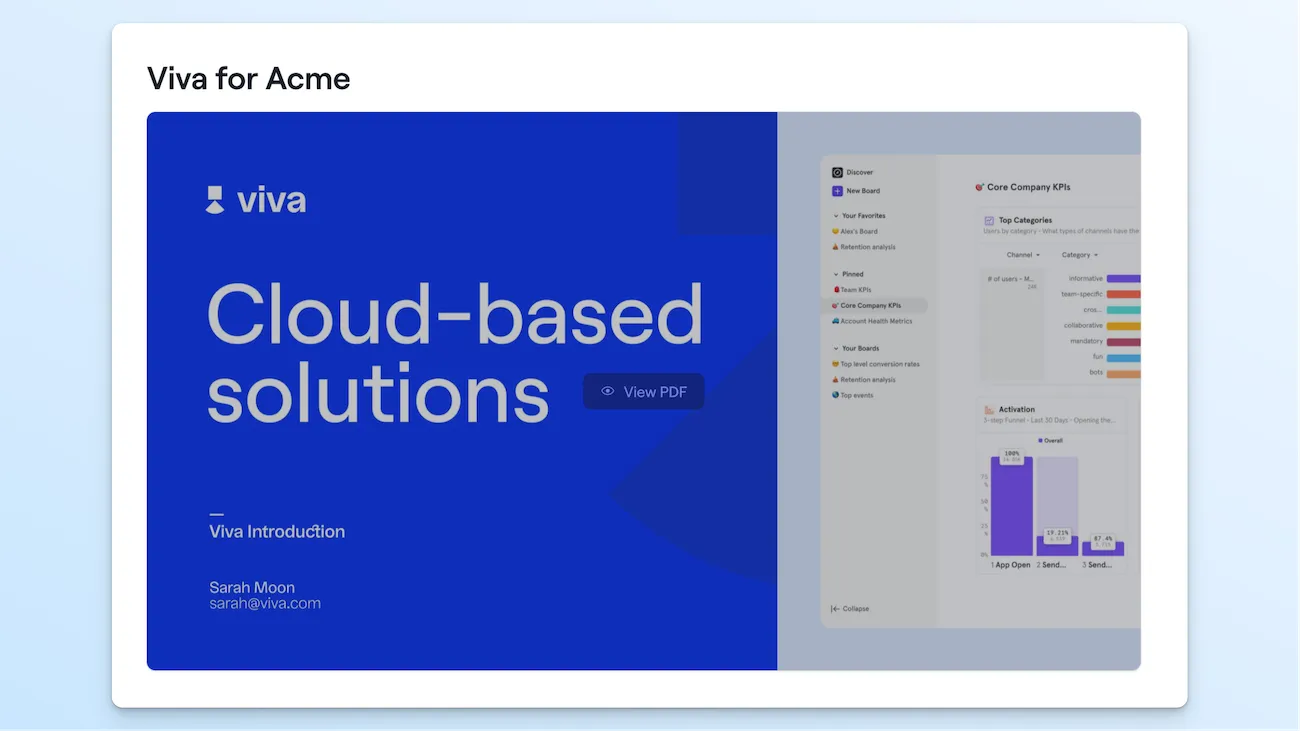
We've made it smoother to view embedded PDFs of different shapes and sizes. Portrait PDFs now scroll up and down, whereas landscape PDFs (like slide decks) use left-to-right arrow navigation.
16. Filenames are hidden in shared PDFs
Embedded PDFs in the shared view of a workspace no longer display filenames (until you open the file), resulting in a cleaner presentation for customers.
17. Update Library assets in fewer clicks
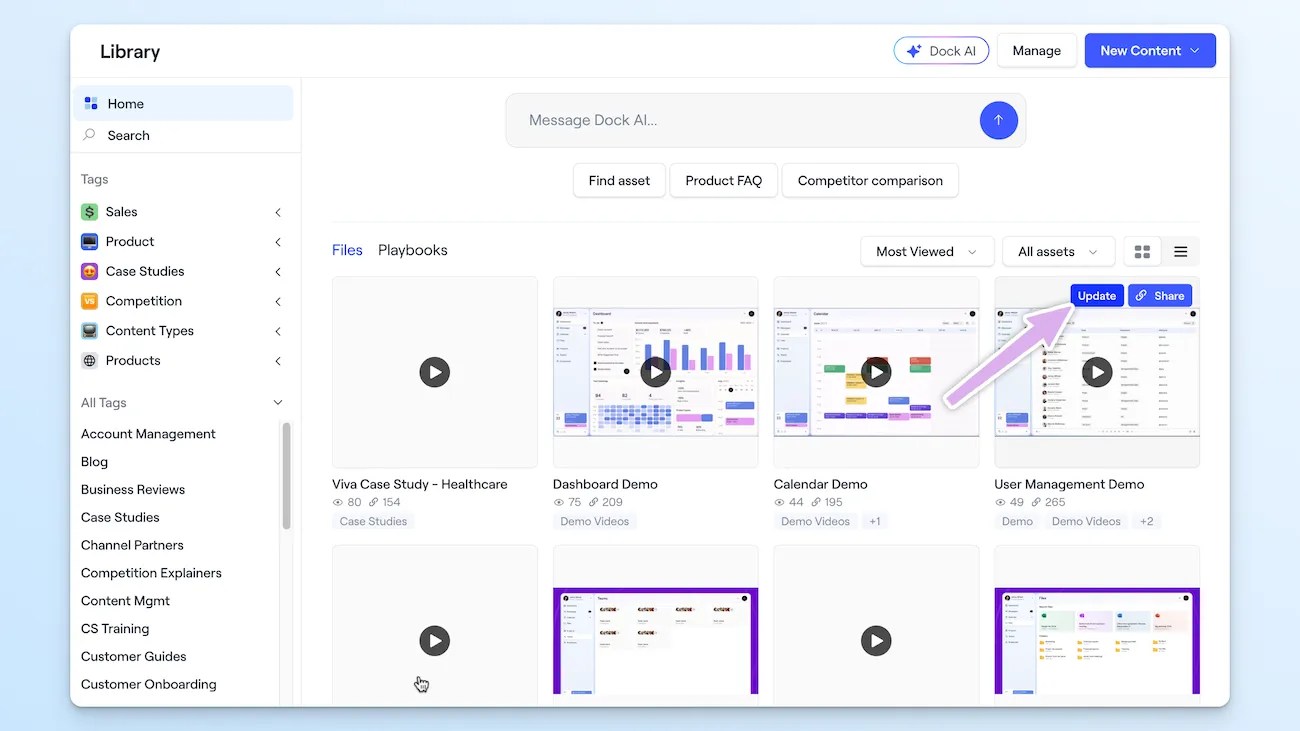
We've also made it faster to manage Library assets. You can now update a Library asset in a single click from the Library dashboard—no need to open each asset individually to make changes.
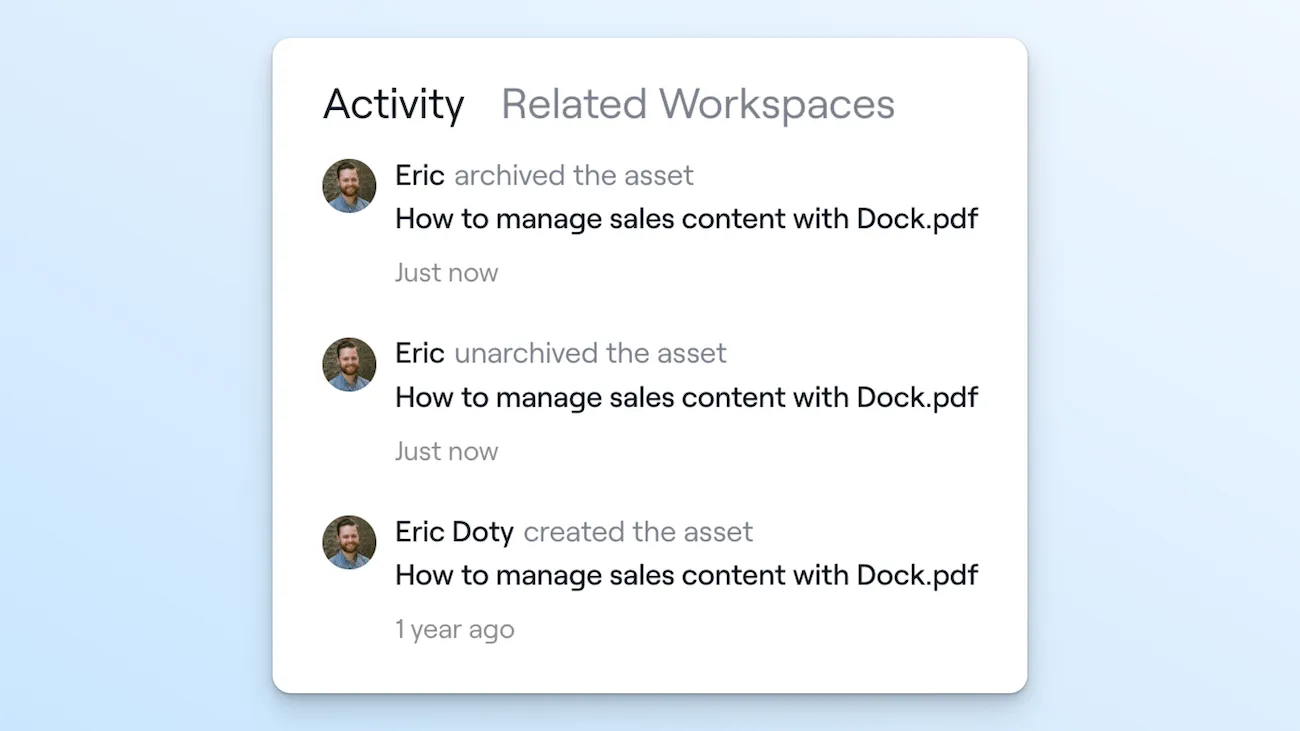
18. See the archive history of an asset
You can now see who or what system archived a Library asset in its activity log. For example, you might want to know that an asset was removed from Dock via your synced Google Drive.
With more Little Things coming Thursday
A huge thank you to everyone who sent us suggestions for workspaces and the Library. Nearly every improvement here started as your idea, so please keep them coming to your CSM or support@dock.us.
But we're not done for the year just yet!
On Thursday, we'll share another product update with new Dock AI features and integrations. Stay tuned.
- Alex


Related Revenue Lab Articles


Templates for Sales, Onboarding,
Projects and Portals
Customize and share with clients


