


Use Dock in the AI tools your team already works in—and build Dock into your AI workflows.
The new Dock Model Context Protocol (MCP) server connects your Dock account to Claude, ChatGPT, Gemini, Co-Pilot, and any MCP-compatible assistant, so you can work with Dock in plain language without ever opening it.
Here's a quick look:
With the Dock MCP, you can do things like:
- Find deal rooms and content by account, rep, stage, or keyword
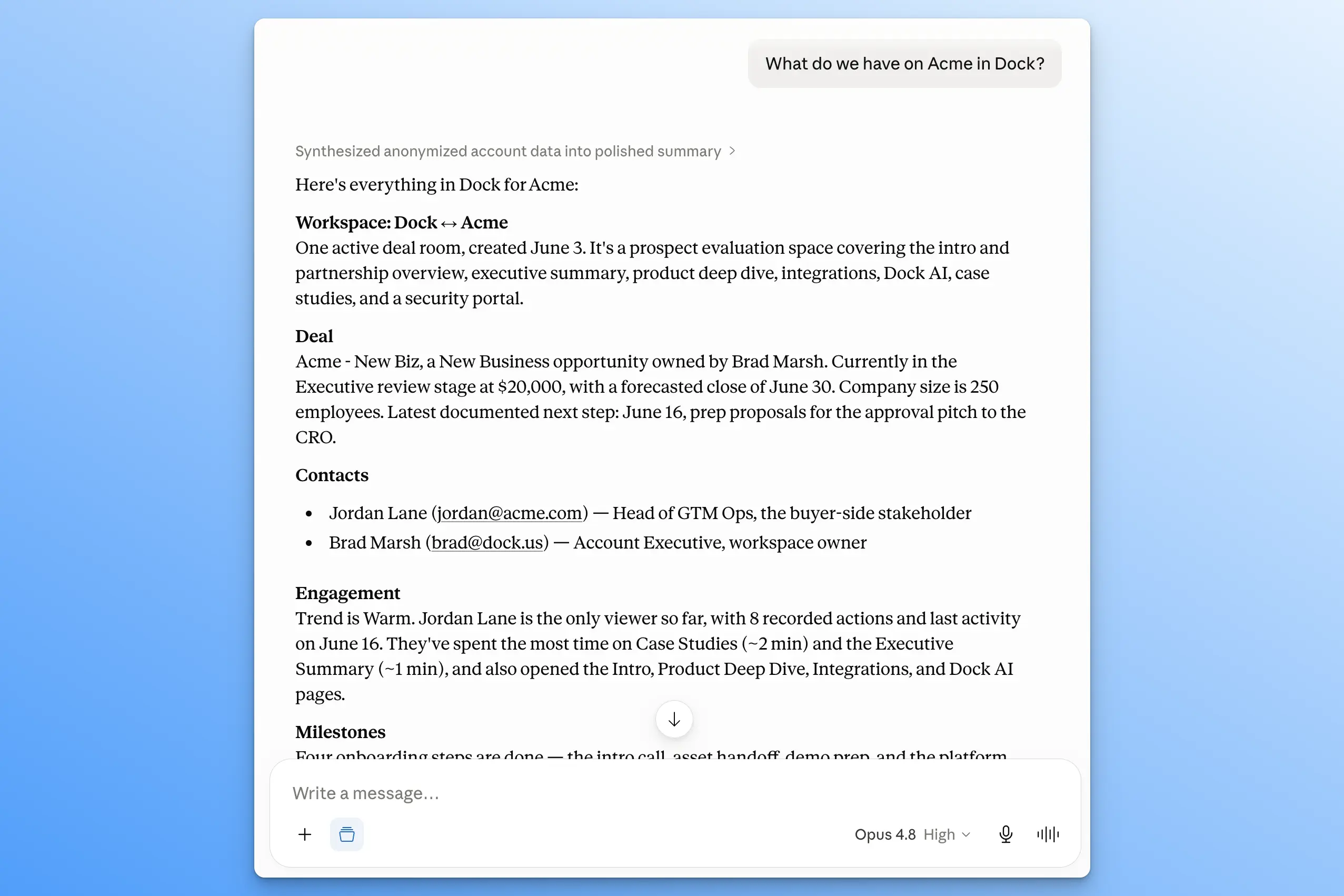
- Pull everything Dock has on a single account in one query
- Ask questions across your whole book of business ("Which deal rooms haven't been touched in 30 days?")
- Run your Dock agents from your assistant
- Tag content and create workspaces
- Build Dock into the larger AI workflows your team is creating
Here’s a full run-through of everything you can do with the Dock MCP.

Hold on—what's MCP?
MCP (Model Context Protocol) is a standard way for AI assistants to connect to outside tools and data. It's basically a universal connector. Instead of every app building a one-off integration with every AI assistant, they all speak to the same connection.
Because Dock supports MCP, any assistant that also supports it (Claude, ChatGPT, Gemini, Co-Pilot) can work directly with your Dock account.
Find anything in Dock
You can ask your AI assistant for anything in plain language, and the MCP can search across your whole Dock account. You can:
- Search workspaces by what's inside them, not just their titles (e.g., "The workspace where we promised a Q3 security review").
- Search your content library by topic, format, or keyword.
- Pull up an account to see all workspaces and contacts associated with it.
- Find templates by name.
- Ask the Dock Help Center how a feature works.
✨ Example: Ask "What do we have on Acme?" and your assistant returns their open deal room, the renewal workspace, recent activity, and the contacts on each, pulled together in a single answer.
Take action in Dock
The MCP can also make changes in Dock, once you approve them:
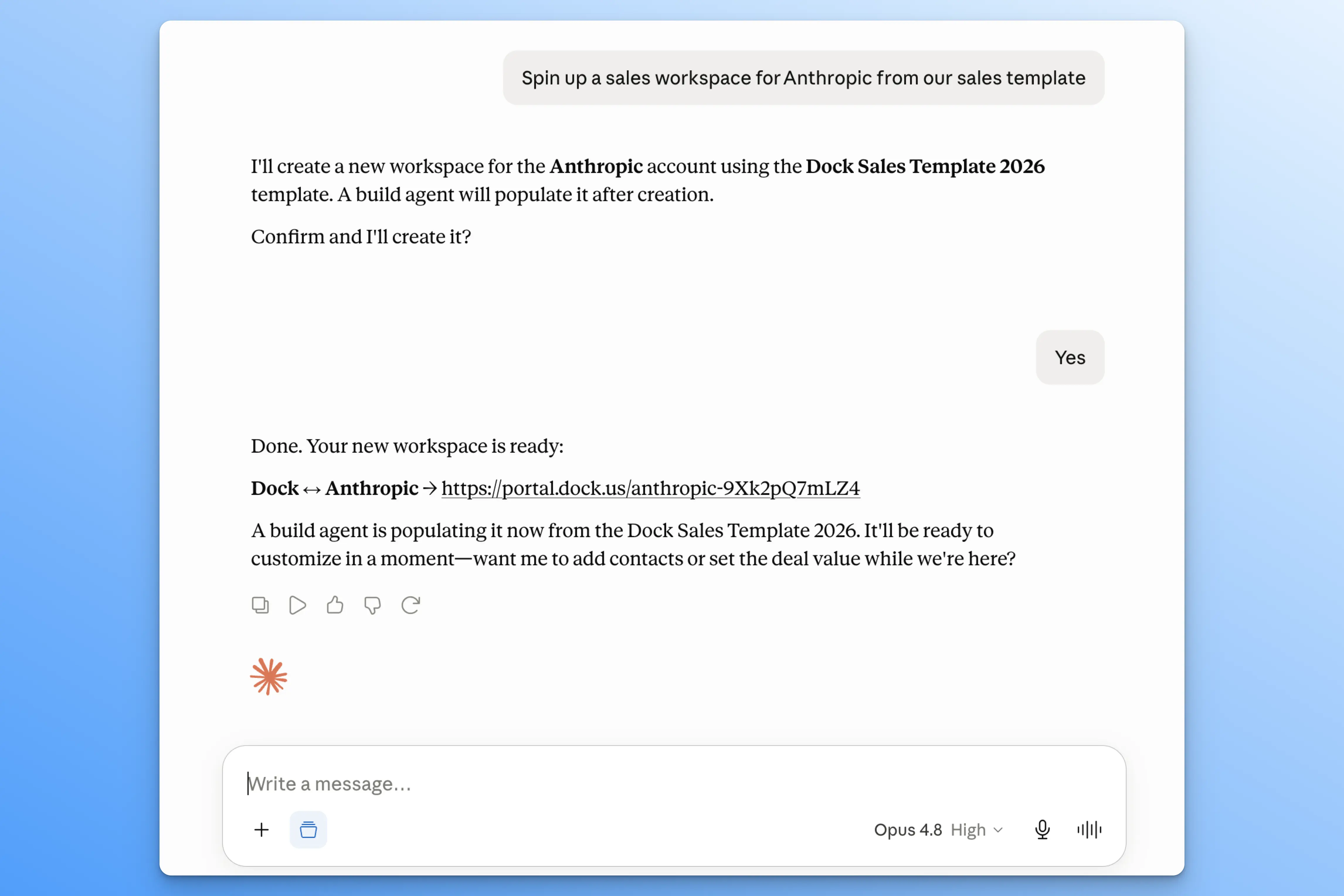
- Create a workspace from a template.
- Duplicate an existing workspace for a new account.
- Add page templates across several deal rooms at once.
- Update contacts and roles on a workspace.
- Archive or restore workspaces.
- Tag or archive content in bulk.
Every change requires human approval, so nothing happens in Dock until you say yes.
✨ Example: "Spin up a sales workspace for Anthropic from our sales template” will draft a new workspace and return a link.
Ask questions across your book of business
The MCP can pull analytics from your Dock data. You can:
- See how buyers engage with a deal room, from overall trends to unique viewers and time spent.
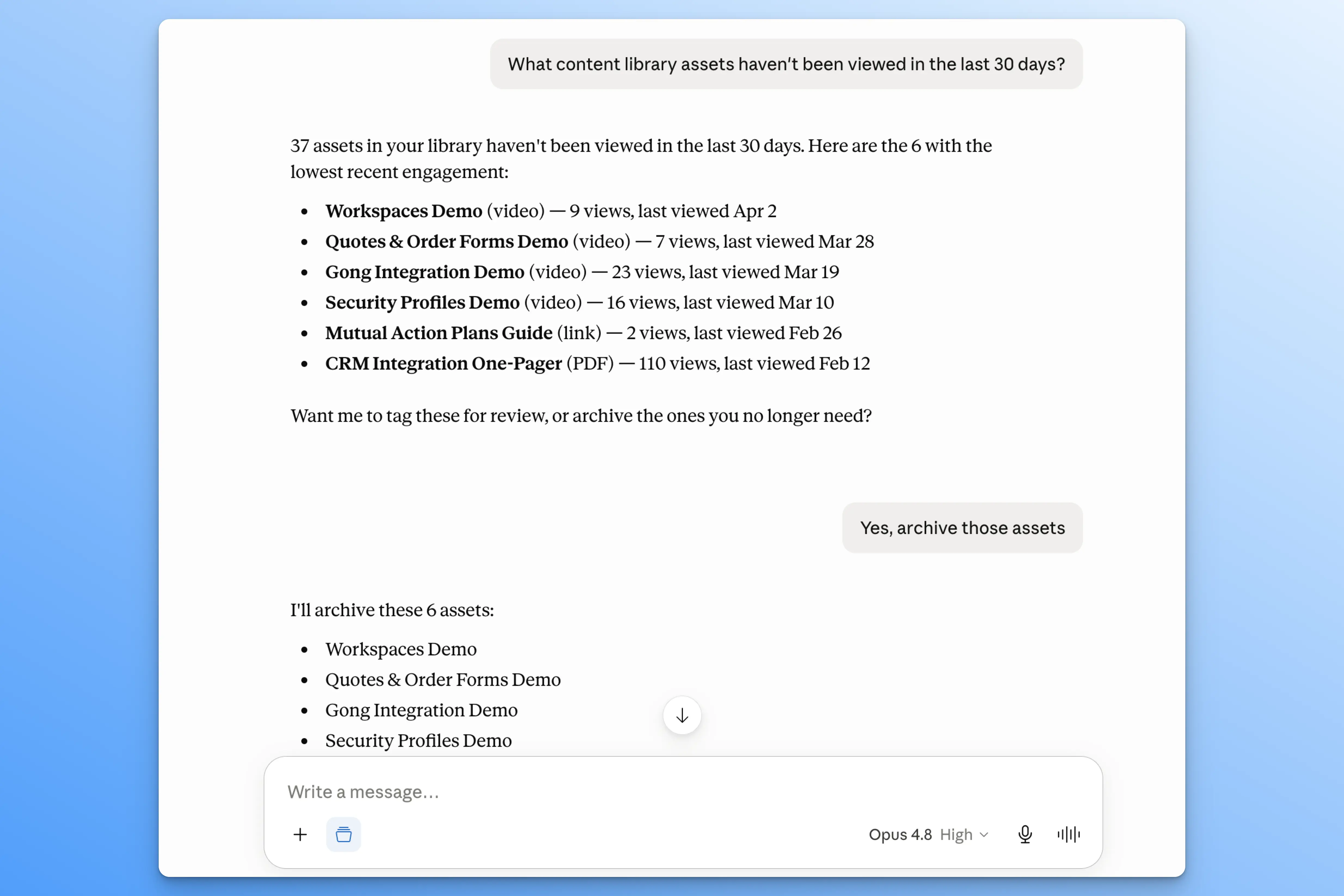
- Sort your content by views, shares, or downloads, or surface the files no one has opened in months.
- Tie workspaces to pipeline by filtering on Salesforce or HubSpot deal stage.
- Get counts and totals, like how many workspaces you created this month or how many active deal rooms you own.
✨ Example: "Which content library assets haven't been viewed in the last 30 days?" returns a list you can act on.
Use your Dock agents
The MCP can use every AI agent in your Dock account. That includes both:
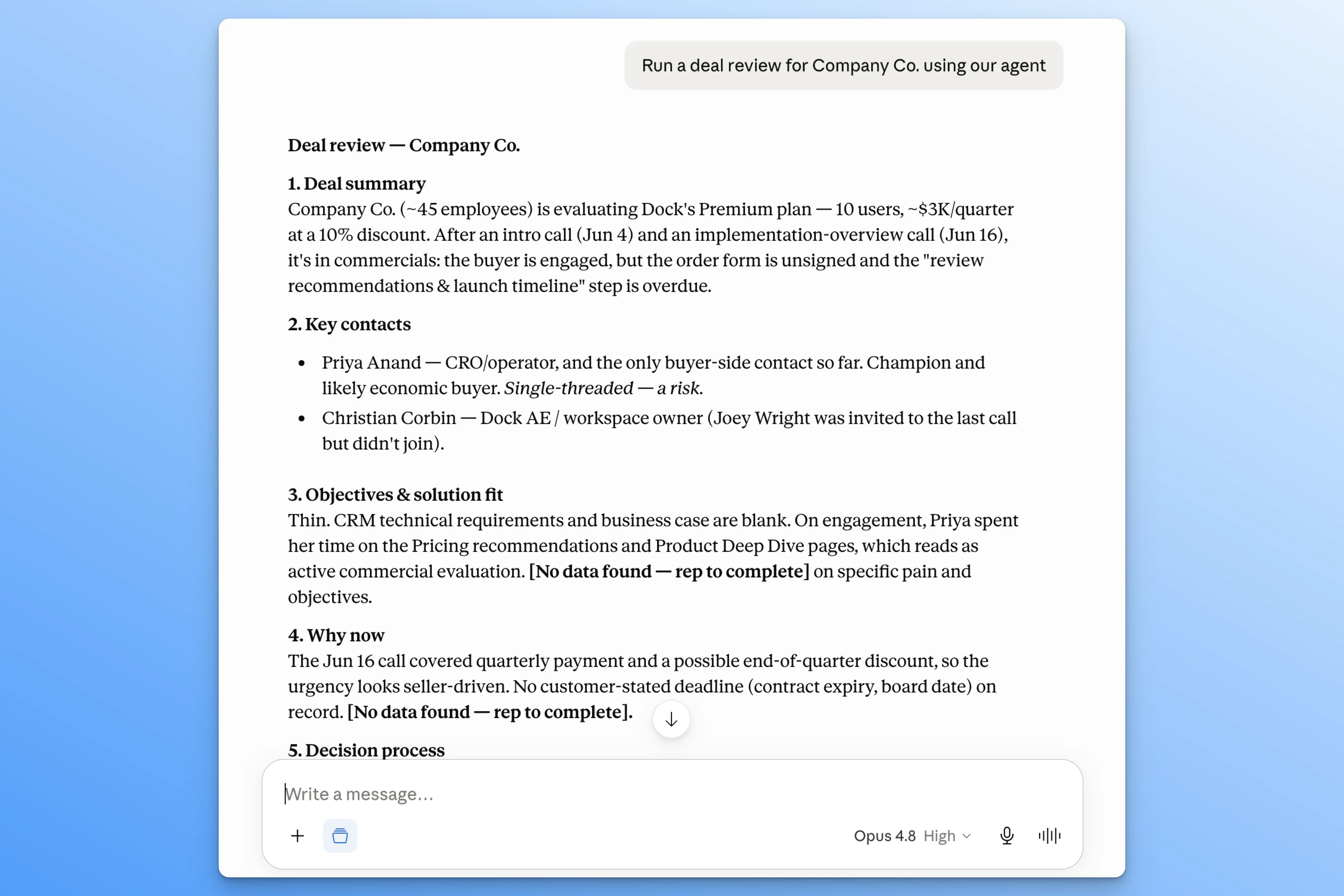
- Dock's built-in agents, like Deal review, Find asset, Email generator, and more.
- Your team’s custom agents, scoped to your own process and data sources.
Dock will automatically route to the right agent for what you're asking, then use that agent's pre-defined data sources (workspaces, content, meetings, email, and connected systems) so the answer comes back scoped and formatted the way the agent was set up.
✨ Example: "Run a deal review on the Stripe opportunity." Your assistant routes to your Deal review agent and pulls CRM data, workspace activity, and call notes into one snapshot.

Miss our AI Agents launch?
Dock now lets you build custom AI agents around your own sales process. Learn more here.
Connect Dock to your AI workflows
Because the Dock MCP is a standard connector, any AI workflow your team builds can call Dock directly.
Your workspaces, content, and account data become building blocks you can drop into whatever you're automating.
- Combine Dock with your other tools so a Claude Project or custom GPT can pull an account from Dock and use that data elsewhere.
- Package a repeatable task as a Claude Skill or a Gemini Gem, like a Monday pipeline review that reads engagement across your open deal rooms.
- Script larger jobs by wiring Dock into coding agents like Claude Code or Codex for multi-step workflows.
✨ Sales example: Create a Claude Project for your AEs that pulls a deal room's engagement from Dock, enriches the buying committee with Clay, and checks the account's latest news with Perplexity—then drafts a tailored follow-up.
✨ Customer success example: Create a custom GPT that preps a QBR by pulling workspace engagement from Dock, product usage from Stripe, and open support tickets from Zendesk—then drafts the recap.
Get started with the Dock MCP
The Dock MCP is now live in beta on all Dock plans. The connector respects existing Dock permissions, so each person can only access what they already have access to in Dock.
For setup instructions, check out our Help Center:
- Using Dock with Claude via MCP
- Using Dock with ChatGPT & Codex via MCP
- Using Dock with Gemini via MCP
Have product feedback or requests for where we take the MCP next? Email us at support@dock.us.
We're excited to see what you build with this!


Related Revenue Lab Articles




.webp)
Templates for Sales, Onboarding,
Projects and Portals
Customize and share with clients


